Viewing your team and inviting your reports to Engage
Managers who are not admins get a My Team page listing the people they manage. Paste email addresses into Invite to my team and your reports start receiving feedback and pulse cards right away.
If you manage people in Engage, the My Team page shows who reports to you and lets you add teammates yourself, without routing through HR.
Open My Team
In the left menu, under My Team, click My Team. This page appears for managers who are not admins. Admins add people from Admin > People > Users instead.
The table lists each person's Name, Title, Email and Status:
- Active: they are using Engage.
- Invited: they have an invite but have not signed in yet.
- Inactive: their account is turned off.
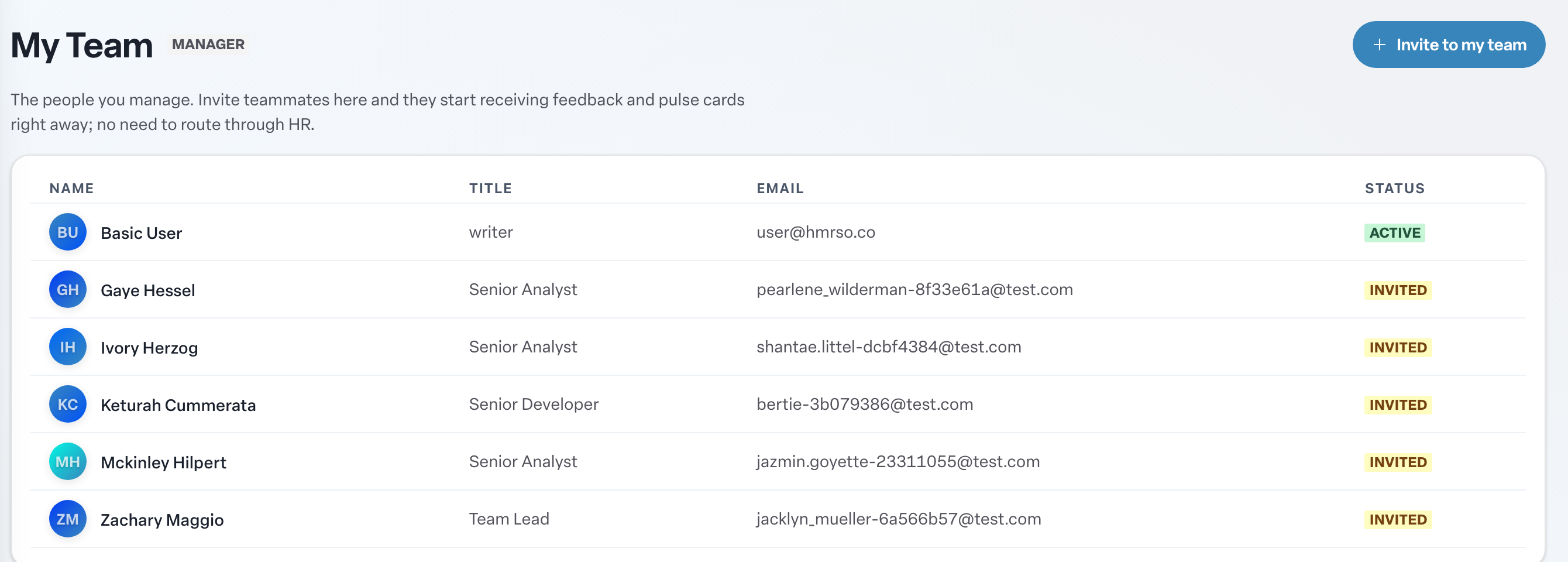
If you have not added anyone yet, you will see "You haven't added anyone yet" with an Invite teammates button.
Invite your reports
- Click Invite to my team (or Invite teammates on an empty team).
- Paste one or more email addresses. Separate them with commas, spaces or new lines. You can also paste lines like
Bob Lee <bob@example.com>to include a name. - Engage shows how many valid emails it found and lists each one. Check the First name and Last name for each person and correct anything that looks off. Click Remove to drop a row.
- Click Send Invites. The button shows the count, for example Send 3 Invites.
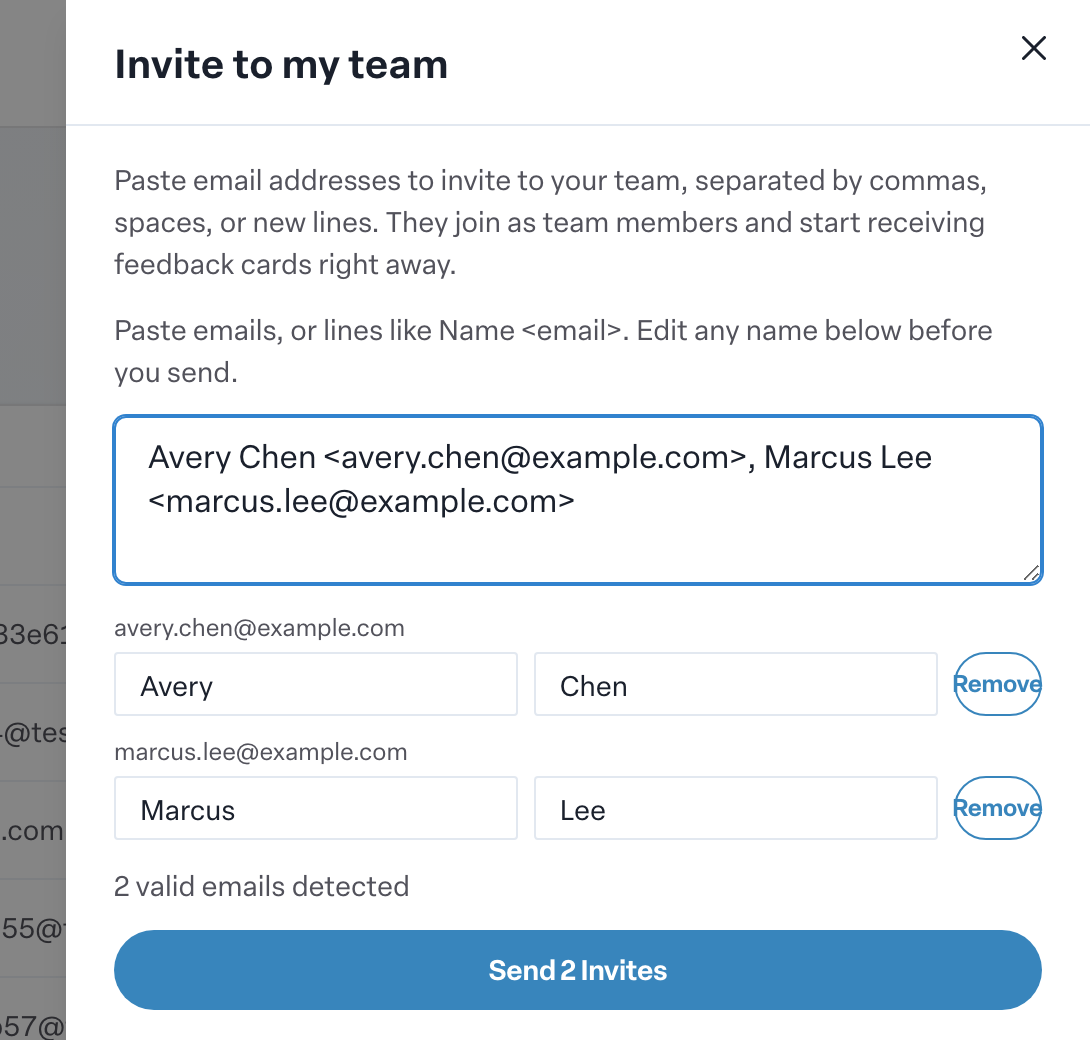
Each person gets a login invite. They join as members of your team and start receiving feedback and pulse cards right away.
Not seeing My Team?
If the page says "This area is for managers," your account is not set up as a manager. Ask your administrator if you should manage a team.
Next, check how your team is doing on your Team Dashboard.