Using your Team Dashboard
Your Team Dashboard, under My Team, shows how your team is doing and what needs your attention. Work through action items, check team sentiment and habit scores, and follow team activity.
If you manage a team in Engage, your Team Dashboard is the home for your team's data. Open it from My Team > Team Dashboard in the left menu. When action items are waiting, a number appears on the menu item.
Depending on how your organization is set up, your Team Dashboard uses one of two layouts. Both show how your team feels and how it is doing on habits and objectives.
Action items
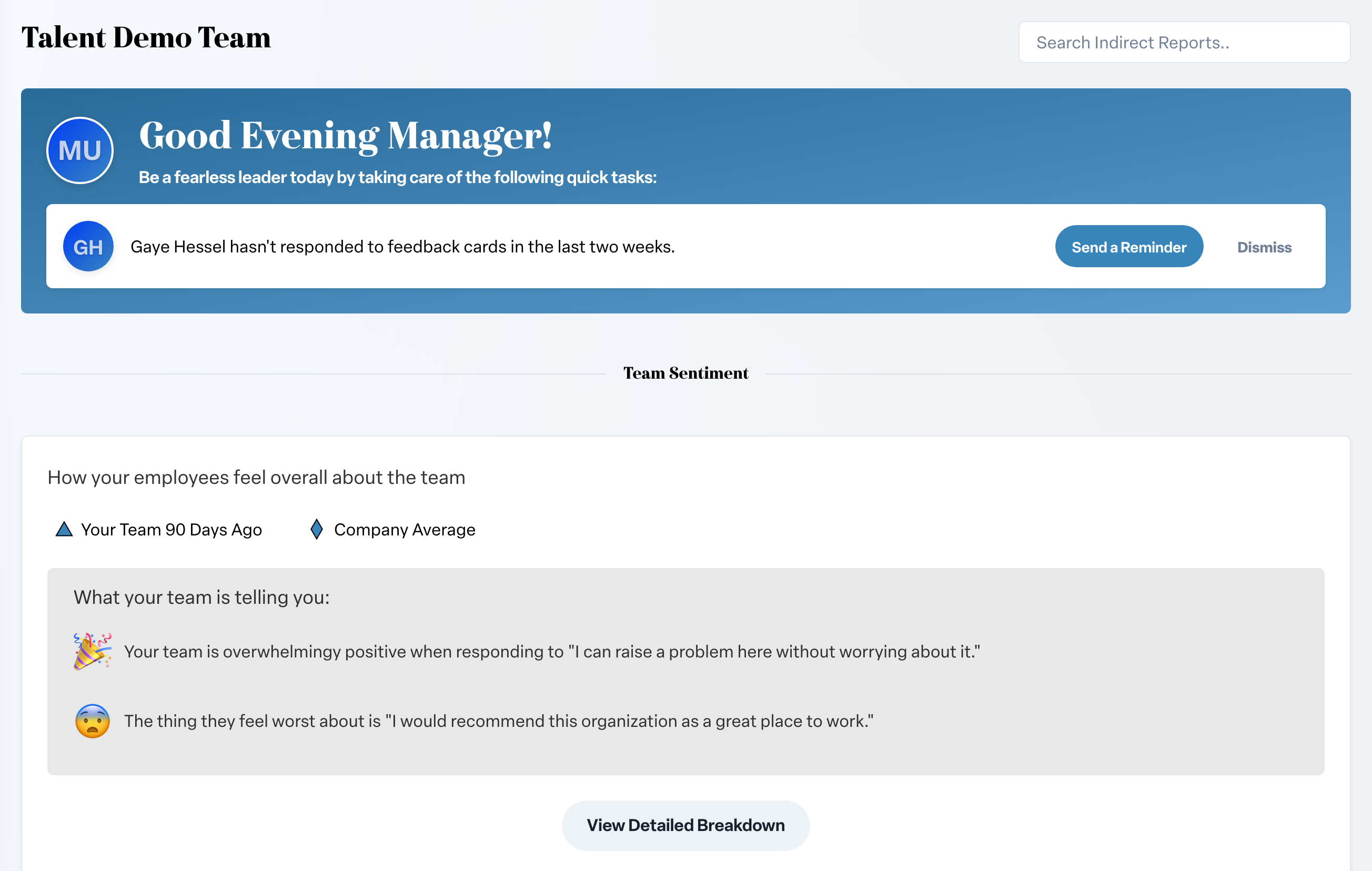
On the standard layout, Engage lists the things that could use your attention at the top of the dashboard, each next to the person it concerns. Every item has one suggested action:
- Send a High-five when someone's score has gone up.
- Go To Profile when someone's score has dropped or is low, so you can look at the detail.
- Send a Reminder when someone's participation is low or they have missed two weeks of cards.
Click the action to take it. A check mark confirms it. Click Dismiss to clear an item you have handled another way.
Team sentiment
Team Sentiment shows how your people feel about the team overall. It compares the Last 90 Days Ending Today with the Previous 90 Days and with Company Sentiment. Under "What your team is telling you:" Engage calls out where feedback is trending more positive or more negative. Click View Detailed Breakdown for more.
Your people and their habits
On the standard layout, Your Team lists each person with their Habits, 4 Week Trend, Strongest Habit, Weakest Habit, and Last Response. "Not Enough Data" means Engage is still collecting feedback for that person.
On the newer layout, Team Habit Scores shows each person's habit scores next to the Company Average, their Last login, and a link to their Feedback Circle.
Objectives and activity
- Team Objectives (or Team Member Objectives) shows what your team is working on, if your organization uses Objectives.
- On the newer layout, Recent Team Activities and Team Activities show what your team is doing: new objectives, comments, high-fives and more. Use Filters to narrow the feed by Person or Type.
More than one team?
If you manage several teams or groups, use the selector at the top to switch between them.
Your team on the home dashboard
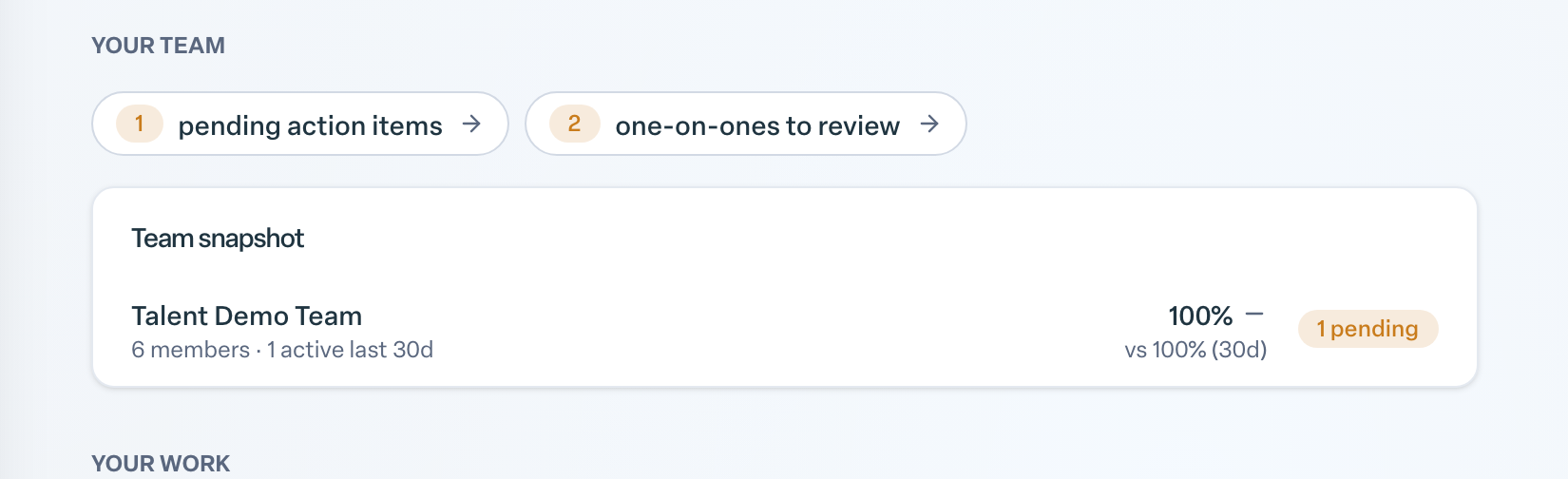
If your organization has the role-based dashboard turned on, your home page also has a Your team section. It shows how many pending action items and one-on-ones to review you have, plus a Team snapshot for each team: member count, how many were active in the last 30 days, the response rate compared with the 30-day average, and a pending badge where action items are waiting.