Scheduling a vacation in Engage
Schedule a vacation from your profile menu and Engage stops sending you feedback cards and emails for those dates, without costing you any points.
Going away? Tell Engage, and it will stop asking you for feedback while you are gone. While you are in vacation mode you do not receive feedback cards or emails, and you do not lose any points.
Schedule a vacation
- Click your avatar to open your profile menu.
- Choose Schedule Vacation.
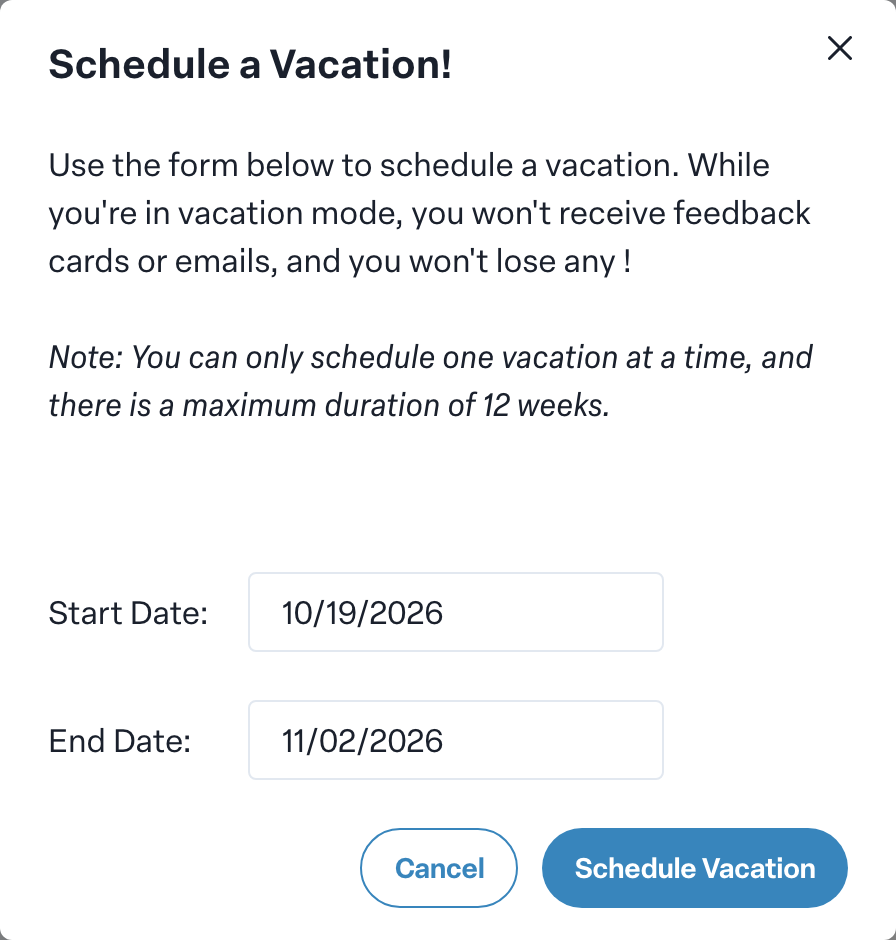
- In Schedule a Vacation!, pick a Start Date and an End Date.
- Press Schedule Vacation.
Engage confirms with Vacation Scheduled! and repeats the dates: you won't receive any feedback cards between them.
The rules
- One at a time. You can only have one vacation scheduled.
- Up to 12 weeks. A vacation can last at most 12 weeks. For a longer leave, talk to your admin.
- The end must be after the start. The same day for both is not accepted.
If a date is not accepted, the dialog tells you why: End date cannot be same as or before start date, or Vacation duration cannot be longer than 12 weeks.
Change or cancel a vacation
Open Schedule Vacation again. If you already have one, Engage shows its dates and asks whether you want to cancel it. Press Cancel Vacation to remove it, then schedule a new one if your plans changed.
What vacation does not pause
Vacation mode is about feedback cards and their emails. It does not move your 1:1 dates or your objectives' delivery dates; talk to your manager about anything due while you are away.
Do not see Schedule Vacation?
Your organization may have turned off self-scheduled vacations. Ask your admin.
Related guides
More in General
- Why does an Engage feature show an "Unlock" page?Beginner
- What happens when I unsubscribe from Engage emails?Beginner
- Viewing your team and inviting your reports to EngageBeginner
- Using Engage on a shared kioskBeginner
- Troubleshooting sign-in to EngageBeginner
- Replaying the Engage tour and seeing what's newBeginner