Troubleshooting sign-in to Engage
Having trouble getting into Engage? Here is how sign-in works, what each sign-in error page means, and what to try before contacting your administrator.
Sign-in trouble usually comes down to a few causes: an expired link, using a different sign-in method than your organization expects, or an account that has not been set up yet. This article explains how sign-in works and what each error page means.
How sign-in works
Your organization decides which sign-in methods you can use.
- Sign-in links. Instead of a password, you get a secure link by email that signs you in. Use it soon after it arrives.
- Single sign-on (SSO). You sign in with your company account. There is no separate Engage password.
If you are not sure which method your organization uses, ask your administrator.
"Your session has expired"
You were signed out because your session could no longer be renewed automatically. This is normal after a long time away. Select Sign in again and sign in as usual.
"We hit a problem signing you in"
Engage detected a sign-in loop and stopped it so you do not get stuck, and our team is notified automatically. Wait a moment, then select Sign in again. If it keeps happening, contact support and include the Reference shown at the bottom of the page.
"No Engage account found"
You signed in successfully, but there is no Engage workspace tied to that email address. You see two visible options:
- Use a different email. Pick this if you have another work email that your organization uses for Engage.
- Try signing in again. This is a link under the page. Pick this if you are sure your organization uses Engage. If it still fails, ask your admin to add you.
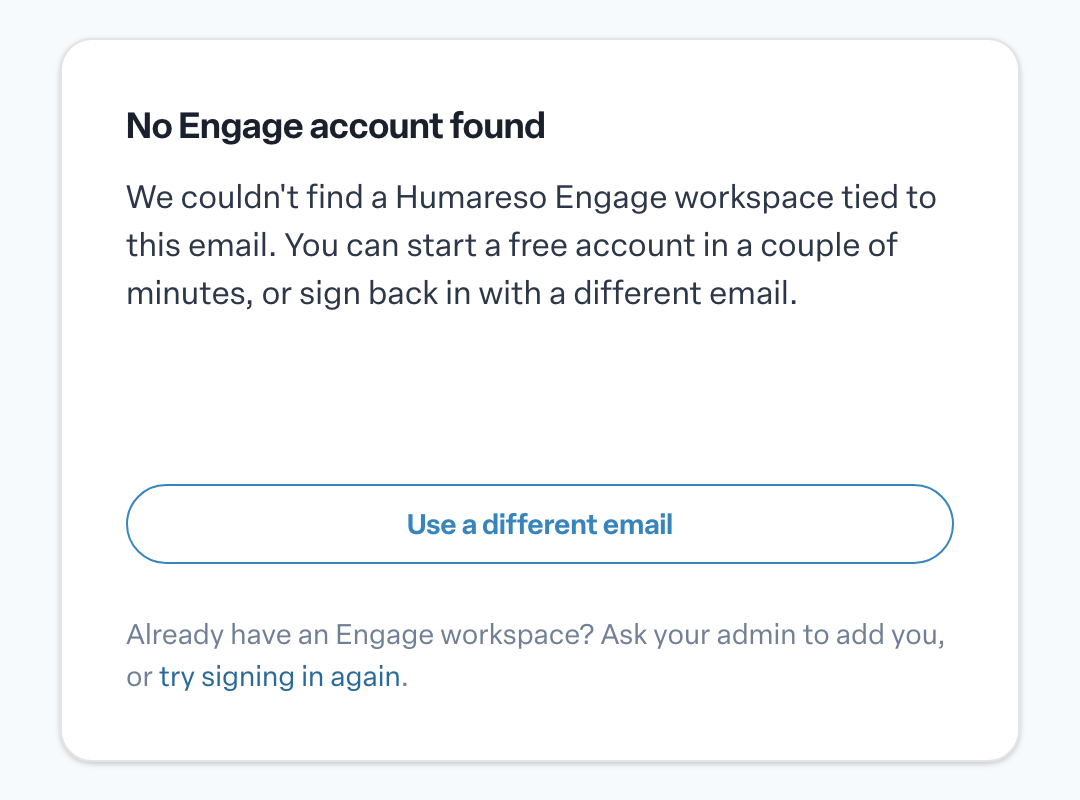
If your organization uses Engage and you still land here, your account has probably not been created yet, or it was set up under a different email. Your administrator can check.
"Something went wrong"
This page means Engage hit an unexpected error. We are notified automatically. Select Try Again, or Go to Home to start over. If it keeps happening, contact support.
If you follow a broken or outdated link to a page that does not exist, Engage simply takes you to your Home page.
Other things to try
- Use the right method. If your organization uses SSO, sign in through your company account.
- Request a fresh sign-in link. If you requested more than one, only the newest is likely to work.
- Stay in one browser. Open the link on the same device and browser where you asked for it.
- Check your email address. A small typo sends the link somewhere you cannot reach.
When to contact your administrator
- SSO is failing for you and your colleagues.
- You believe your account has not been set up or has lost access.
- You have tried a fresh link and the right method and still cannot sign in.
Describe exactly what you tried and what you saw, including any reference shown on the error page. If you need Humareso support, email support@humareso.com.
More in General
- Why does an Engage feature show an "Unlock" page?Beginner
- What happens when I unsubscribe from Engage emails?Beginner
- Viewing your team and inviting your reports to EngageBeginner
- Using Engage on a shared kioskBeginner
- Scheduling a vacation in EngageBeginner
- Replaying the Engage tour and seeing what's newBeginner