General
Beginner
Reading a team member's profile page
Managers and admins can open a person's profile to see their habits and feedback scores, current objectives and 1:1s in one place, and jump to their habits or feedback circle.
Every person in Engage has a profile page that pulls their feedback, objectives and 1:1s together. It is built for the people responsible for them, so you see it for:
- anyone who reports to you, directly or further down your reporting line
- members of a group you manage
- people whose 1:1s you contribute to
- everyone, if you are an admin
If you open a profile you are not allowed to see, it does not load.
Open a profile
- From your Manager Dashboard, click a team member's name.
- From a team member's habit page, follow the link back to their profile.
What is on the page
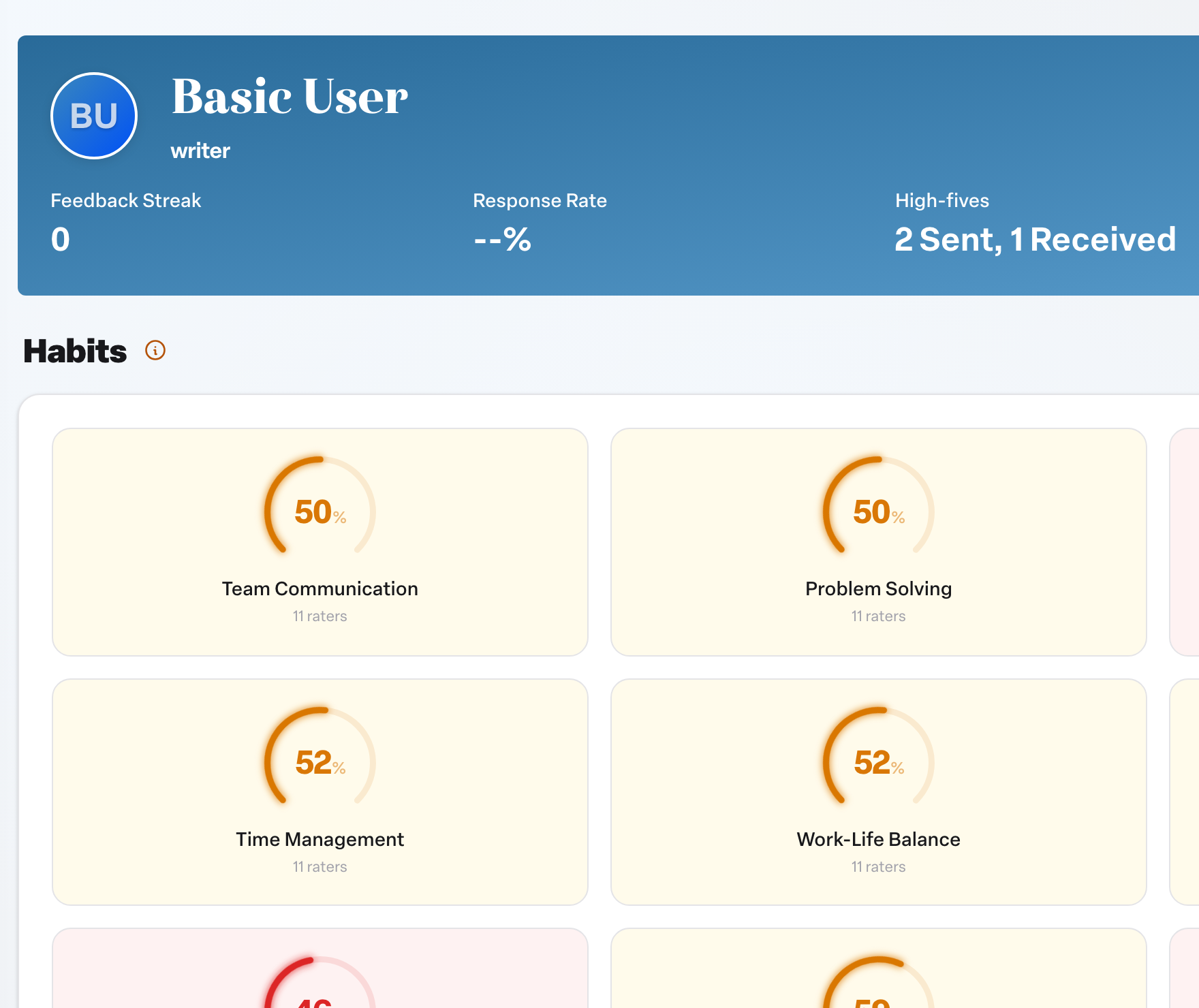
- Header: their name, title and photo, plus Feedback Streak, Response Rate, High-fives sent and received, and Network Health.
- Habits: each habit they receive feedback on, with their current score and how many people are rating it. A habit with too few raters stays locked until enough feedback comes in. Engagement survey themes are not shown here; this card is only about the person's behaviors.
- Objectives: if your organization uses objectives, their in-progress objectives, five at a time.
- 1:1s: if your organization uses 1:1s, their one-on-ones and reviews, which you can search and sort. Past reviews stay visible even if the person has been deactivated.
Take action from the profile
- Manage Feedback Circle opens their circle on the Circles page, where you can add or remove providers. See Checking and changing someone's feedback circle.
- Manage Habits lets you choose the habits they receive feedback on. This button appears only if your organization lets managers pick habits.
Getting back
The link at the top takes you back where you came from: Back to Manager Dashboard for managers. Admins who are not the person's manager see Back To Admin Manage Users, which returns to the Users list.