Completing your first sign-in setup
The first time you sign in, Engage asks a few quick questions to set up your profile, reminders and feedback circle. Here is what each step does and which ones you can skip.
The first time you open Engage, a short setup window appears on your Home page. It takes a few minutes and makes sure your name, reminders and feedback circle are right before you start.
Your organization can tailor this setup, so you may see fewer steps than described here.
Before the setup
If your organization uses a data privacy agreement, you will see it first. See What is the Data Privacy Agreement in Engage?
The setup steps
- Welcome. A quick note that you are almost ready. Select Next.
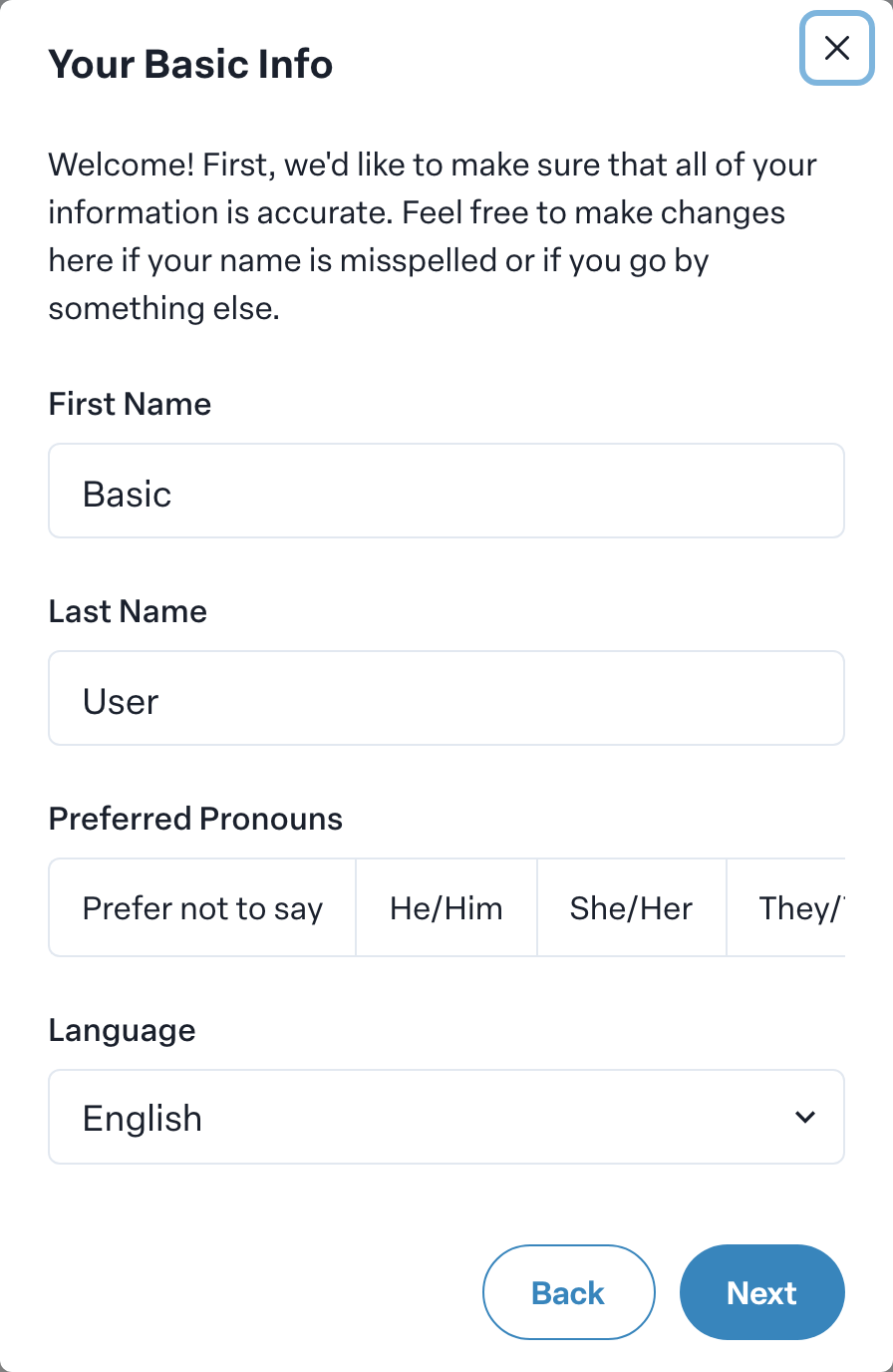
- Your Basic Info. Check your First Name and Last Name and fix them if they are misspelled or you go by something else. Choose your Preferred Pronouns and your Language.
- Upload an Avatar. Add a photo so people recognize you on feedback cards and around Engage, or select Skip adding an Avatar.
- Add your Cell Phone Number. Add a mobile number if you want feedback reminders by text message, or select Skip adding a phone number.
- Verify Phone Number. If you added a number, enter the code we text you. If it does not arrive, select Resend verification code, or Skip and setup later.
- Choose Feedback Notification Time. Pick the time of day you want your emails and text messages.
- Tell us who you work with. Search for and select the people you work with most. They become your feedback circle: the people who give you feedback and receive yours. Select Save when you are done.
- All set. Select Close and Engage starts a short tour of your Home page.
Choosing your feedback circle
Aim for at least five people. Choose at least three to get started; the step shows how many you have selected so far. If you save with fewer than three, Engage warns you that you won't be able to see your feedback until more people are in your circle. Choose No, Add More People to go back, or Yes, I'm Sure to continue anyway.
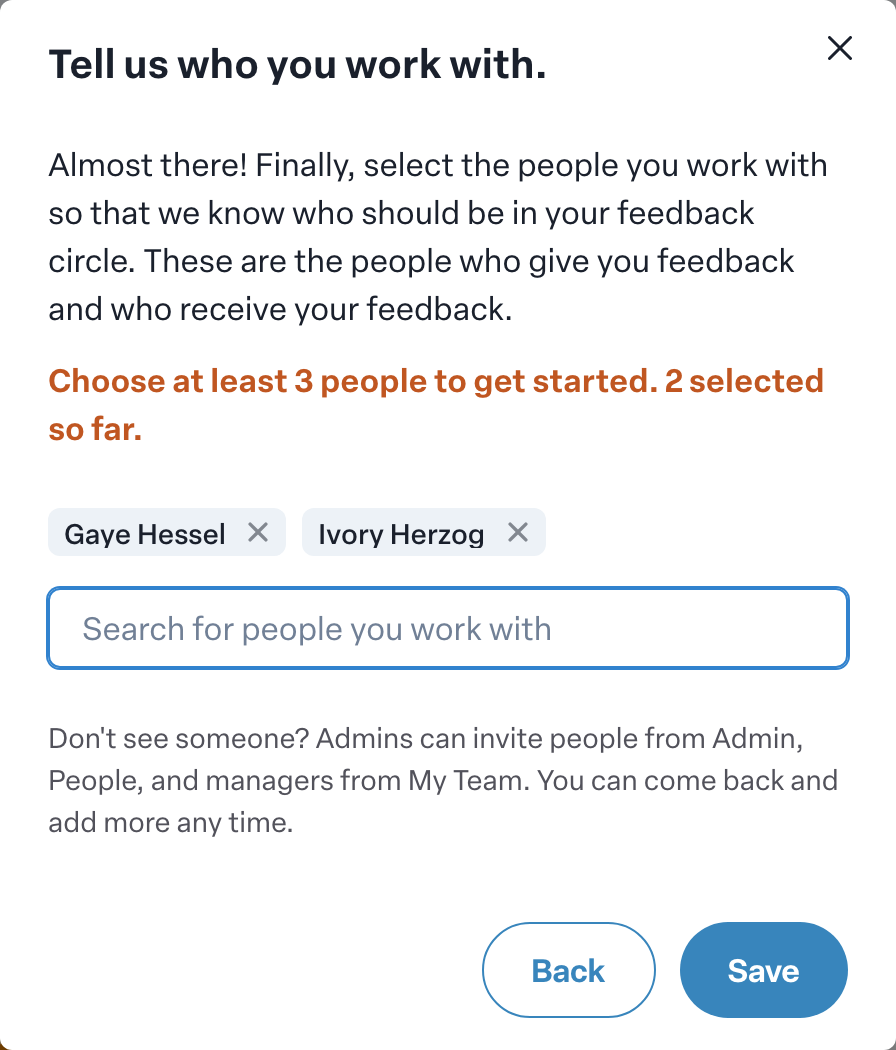
Do not see someone? Admins can invite people, and managers can add people from My Team. You can add more people to your circle at any time.
If you close the window
Closing the setup window ends the setup, and it will not open again on its own. Anything you skipped can be finished in Account Settings, and you can add people to your feedback circle from your habits.
Change things later
Everything you set here can be changed afterward in Account Settings. See Editing your profile and photo and Choosing how Engage notifies you.