Editing your profile and photo
Update your name, pronouns and profile photo from Account Settings. If your organization manages photos through its company directory, you change your photo there instead.
Your name and photo appear on feedback cards, high-fives and throughout Engage, so people know who they are working with. You can update them at any time.
Open your settings
- Select your name or photo in the top right corner.
- Choose Account Settings.
The Profile section is at the top of the page.
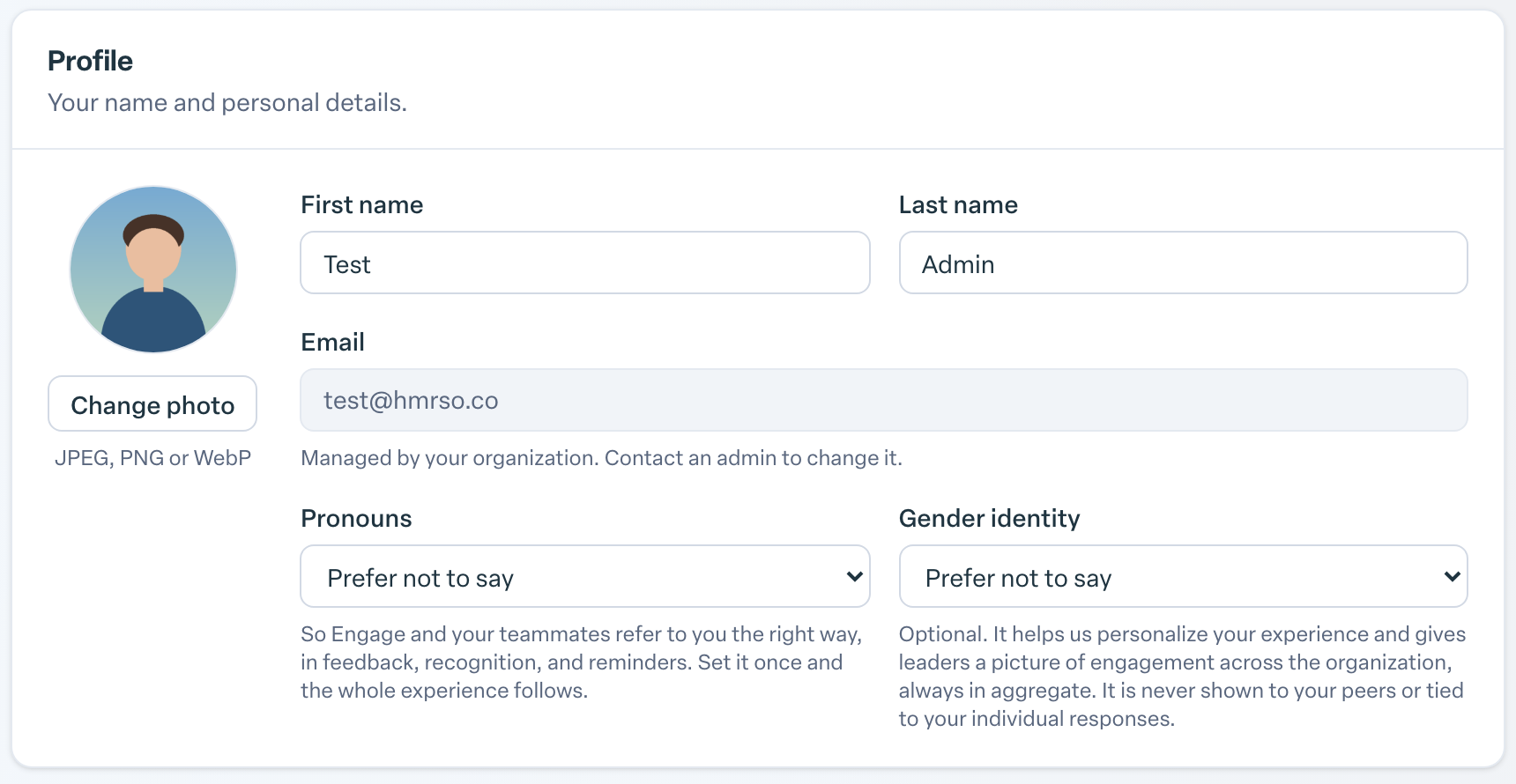
Update your details
- Edit your First name and Last name if they are misspelled or you go by something else.
- Choose your Pronouns so Engage and your teammates refer to you the right way.
- Optionally choose your Gender identity. It is never shown to your peers or tied to your individual responses.
- Select Save changes at the bottom of the page. You will see Saved when it is done.
Your Email cannot be changed here. It is managed by your organization, so contact an admin if it needs to change.
Add or change your photo
- In the Profile section, select Add photo, or Change photo if you already have one.
- Choose an image. JPEG, PNG or WebP files work.
- In Position your photo, drag the image and use Zoom until your face fills the circle.
- Select Save photo.
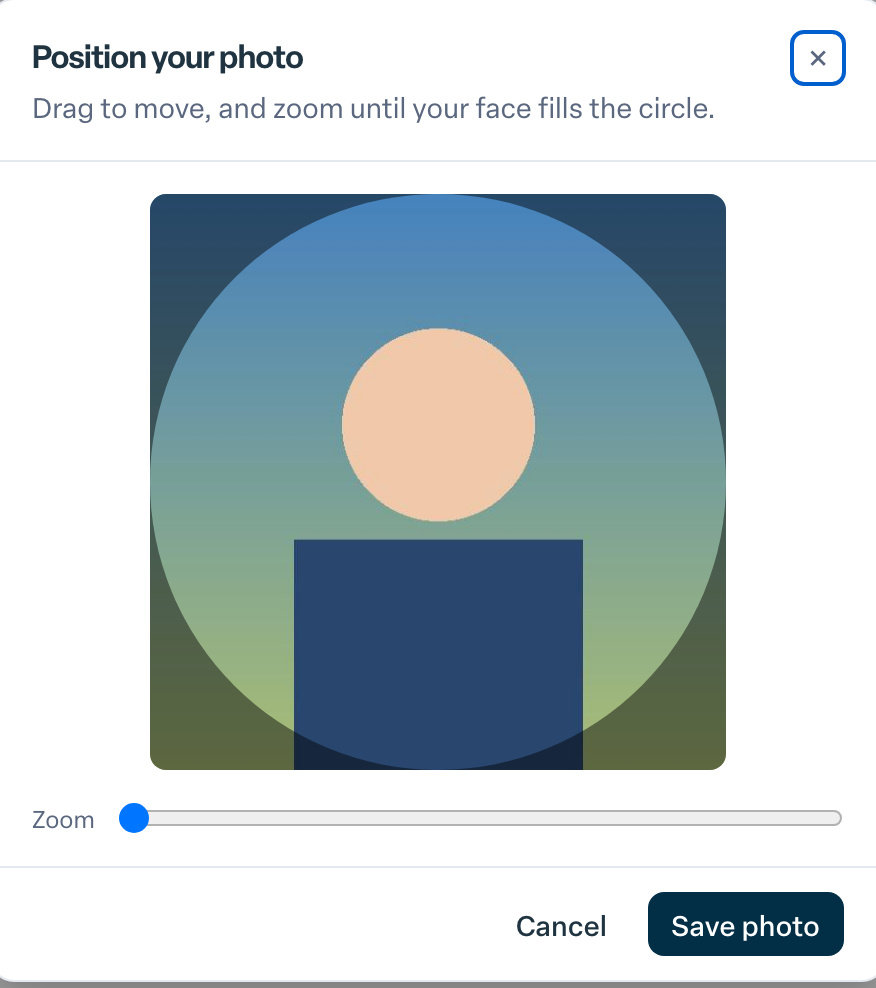
Your new photo appears right away; you do not need to select Save changes for it.
Remove your photo
Select Remove under your photo. This option only appears for a photo you uploaded yourself. If your photo comes from a Gravatar linked to your email, update or remove it on Gravatar.
If you cannot change your photo
Some organizations keep profile photos in step with their company directory. In that case you will see a note that your photo comes from that system instead of the photo buttons. Update your photo there, and Engage picks up the change.