Coaching leaders with the Habits Coaching tab
Managers and admins can open Habits > Coaching to see a leader's strengths and growth areas against the norm, read an AI coaching brief, compare leaders, and keep private coaching notes.
The Coaching tab helps you turn habit feedback into coaching conversations. Find it at Habits > Coaching.
Who can use it
- Managers see the leaders they manage.
- Admins see any leader in the organization.
Everyone else does not see the tab.
Set your filters
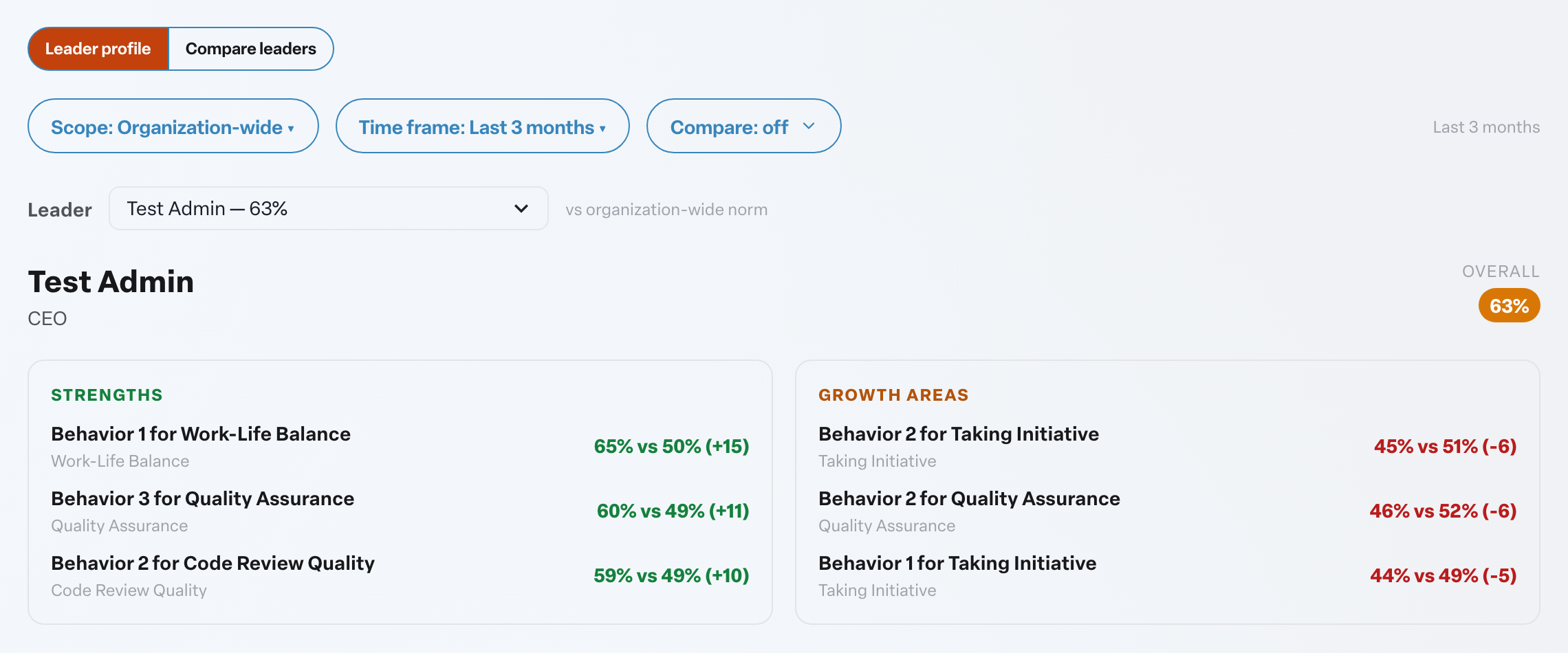
Across the top, choose the Scope (for example Organization-wide or My team), the Time frame, and whether to compare against the previous period or prior year (or Compare: off). With no time frame selected, the last three months are used.
Leader profile
Select Leader profile, then pick someone from the Leader list. You see:
- Their overall score and how it moved vs prior.
- Strengths and Growth areas: the behaviors furthest above and below the norm for your chosen scope.
- Habits & behaviors: each behavior's Score next to the norm.
- AI coaching brief: a short written read of the leader's scores. It is cached for 8 hours; select Refresh to regenerate it. It is AI-generated, so check the numbers before acting on it.
If you see No habit feedback for this leader in the selected window., widen the time frame.
Keep coaching notes
The Coaching notes panel sits on the leader profile.
- Type an observation, action item or follow-up in the box.
- Choose Note, Action item or Follow-up.
- Select Add.
Tick a note to mark it complete, or delete it when it is no longer needed. Notes are private to you and the leader's managers. The leader does not see these. Admins can also read them.
Compare leaders
Select Compare leaders to see several leaders' scores side by side against the norm, using the same filters.