Choosing how Engage notifies you
Pick which notifications reach you by email, text message, push or in-app, set your daily digest time, and turn on push for your device, all from Account Settings.
Engage can reach you by email, text message, browser push and in-app notifications. You choose exactly which notifications use which channel.
Open your notification settings
- Select your name or photo in the top right corner.
- Choose Account Settings.
- Scroll to the Notifications section.
Choose what reaches you, and where
The grid lists notifications down the side and channels across the top: Email, SMS, Push and In-app. If your organization has connected Microsoft Teams, you will also see a Teams column.
Notifications are grouped into categories such as Feedback & Pulse, Recognition, Objectives, Perform (1:1s), Lead360, Digests and Account activity.
- Select a category to expand it and see each notification in it, such as Cards ready, High five or One-on-one reminder.
- Check or uncheck the box where a notification and a channel meet.
- To change a whole category at once, use the checkbox on the category row for that channel.
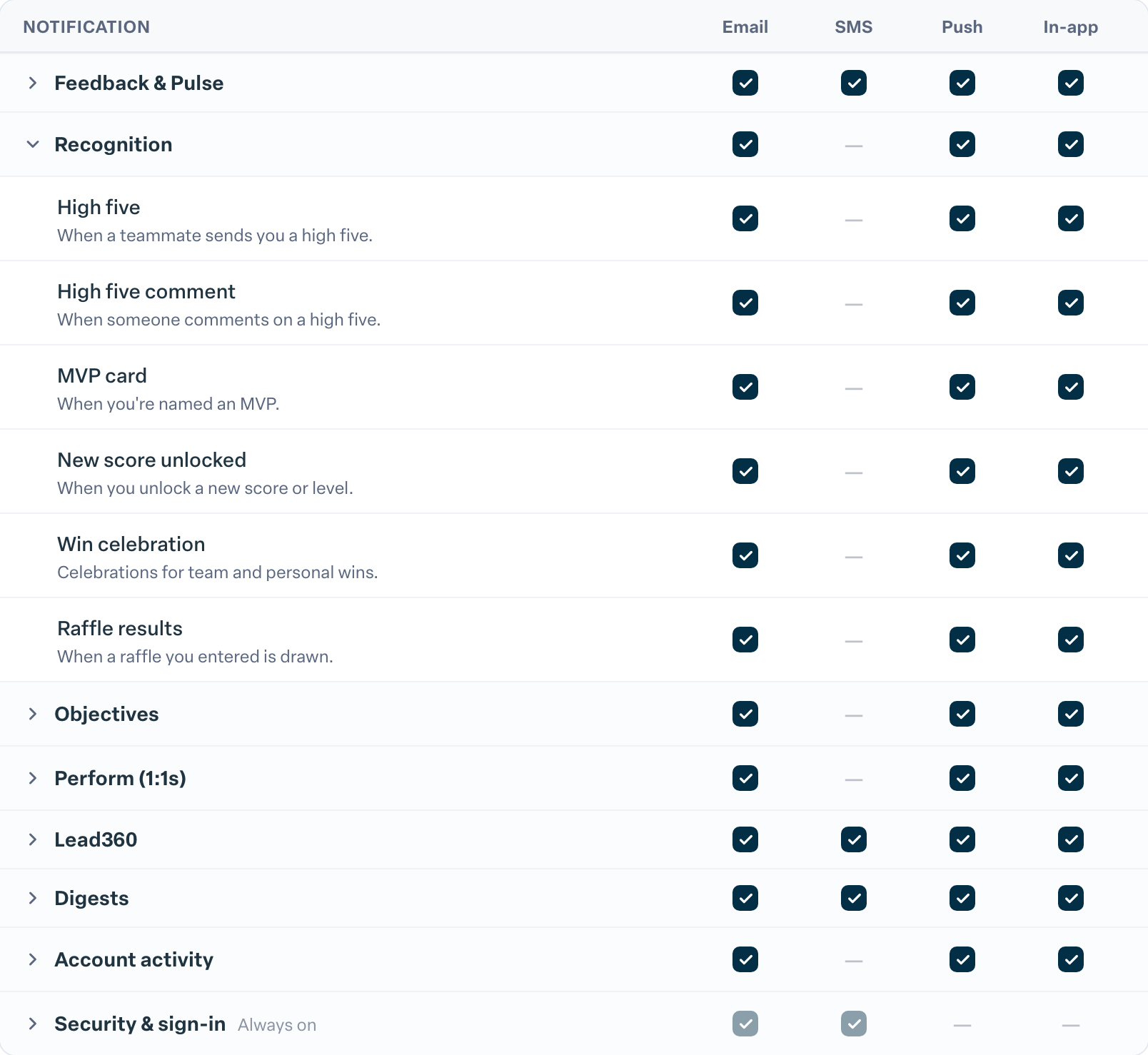
Changes in the grid save automatically. You will see Saved below it.
The Security & sign-in category is always on. These messages keep your account secure and cannot be turned off.
Get text messages
Text messages need a verified mobile number.
- In Mobile number, enter your number and select Verify.
- Enter the 6-digit code we text you and select Confirm.
- Turn on the notifications you want in the SMS column.
If you check an SMS box before adding a number, Engage reminds you to add one first. Your number is used only for the text notifications you turn on.
Turn on push notifications
Push notifications appear on your computer or phone even when Engage is not open. Push is set up per device and browser.
- Under Browser push, select Enable push on this device.
- When your browser asks, allow notifications.
- Choose which notifications use the Push column in the grid.
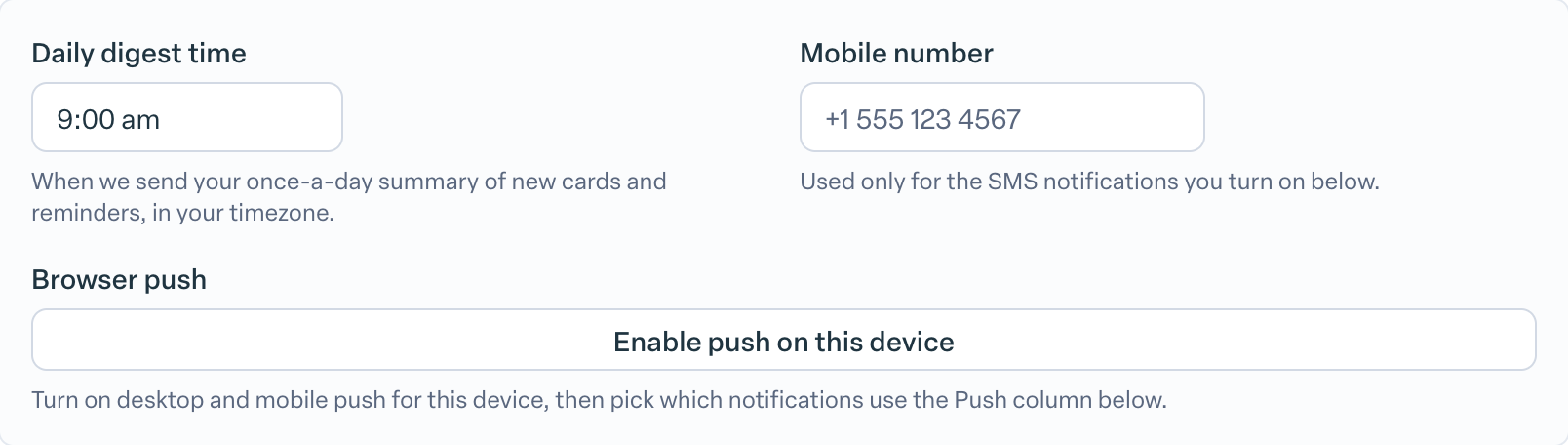
When push is on, you will see Enabled on this device, with Turn off if you change your mind. If your browser blocked notifications, allow them for this site in your browser settings, then reload the page. Some browsers do not support push at all.
Set your daily digest time
Daily digest time controls when your once-a-day summary of new cards and reminders arrives, in your timezone. Choose a time, then select Save changes at the bottom of the page. To change your timezone, see How do I change the language Engage uses?