Spending points in the shop
Use the points you have earned to buy avatar frames, high-five styles and, if your organization runs one, items from your Company Store.
The shop is where you spend the points you have earned. It is named after your organization's word for points, so with the default name it reads Point Shop; if your organization uses stars, it reads Star Shop. The steps below use the default name.
Open the shop
- Select your name or avatar at the top right to open your menu.
- Select Point Shop. If you do not see it, your organization has not turned on the shop.
You can also get there from Browse Point Shop on the Leaderboard, or the Points Store button on the points card on your Home page.
At the top of the shop you see your Balance. That is the amount you can spend right now.
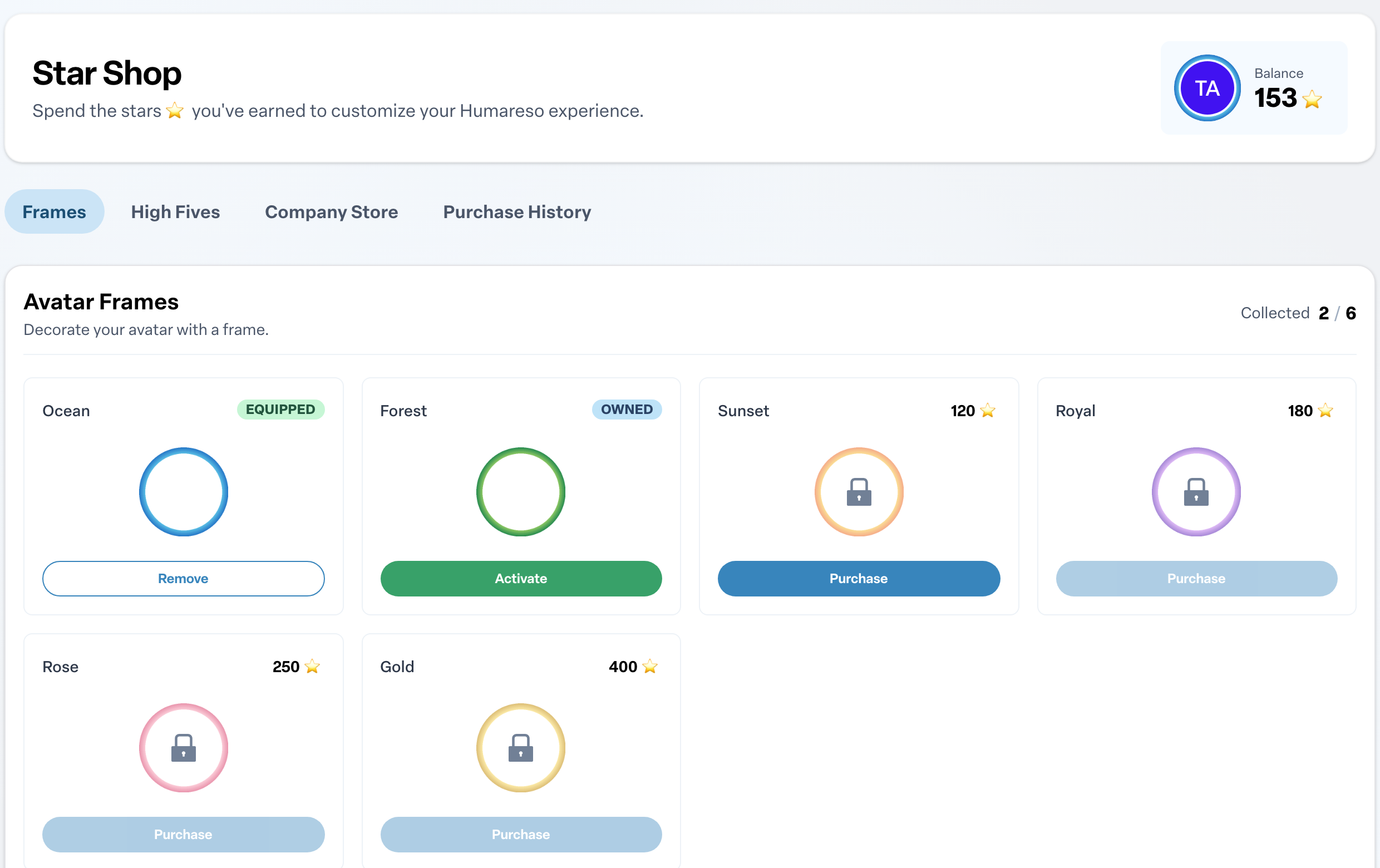
The shop has these tabs:
- Frames
- High Fives
- Company Store, if your organization has one
- Purchase History
A Purchase button is greyed out when your balance is too low for that item.
Buy and use an avatar frame
Frames decorate your avatar everywhere it appears in Engage.
- On the Frames tab, choose a frame and select Purchase.
- Check the price and select Purchase for.
- When asked whether you would like to activate the frame, select Activate to put it on now.
Frames you own show Owned. The one you are wearing shows Equipped. Select Activate to switch to another frame you own, or Remove to take your frame off. Collect all 40 frames to earn the A serious collector badge.
Buy a high-five style
High-five styles change how the high fives you send look to your coworkers.
- On the High Fives tab, choose a style and select Purchase.
- Confirm the purchase, then choose whether to activate it.
You can own several styles and switch between them with Activate. Unlocking every style earns the High Five Collector badge.
Order from your Company Store
If your organization runs a Company Store, you can spend points on branded merchandise.
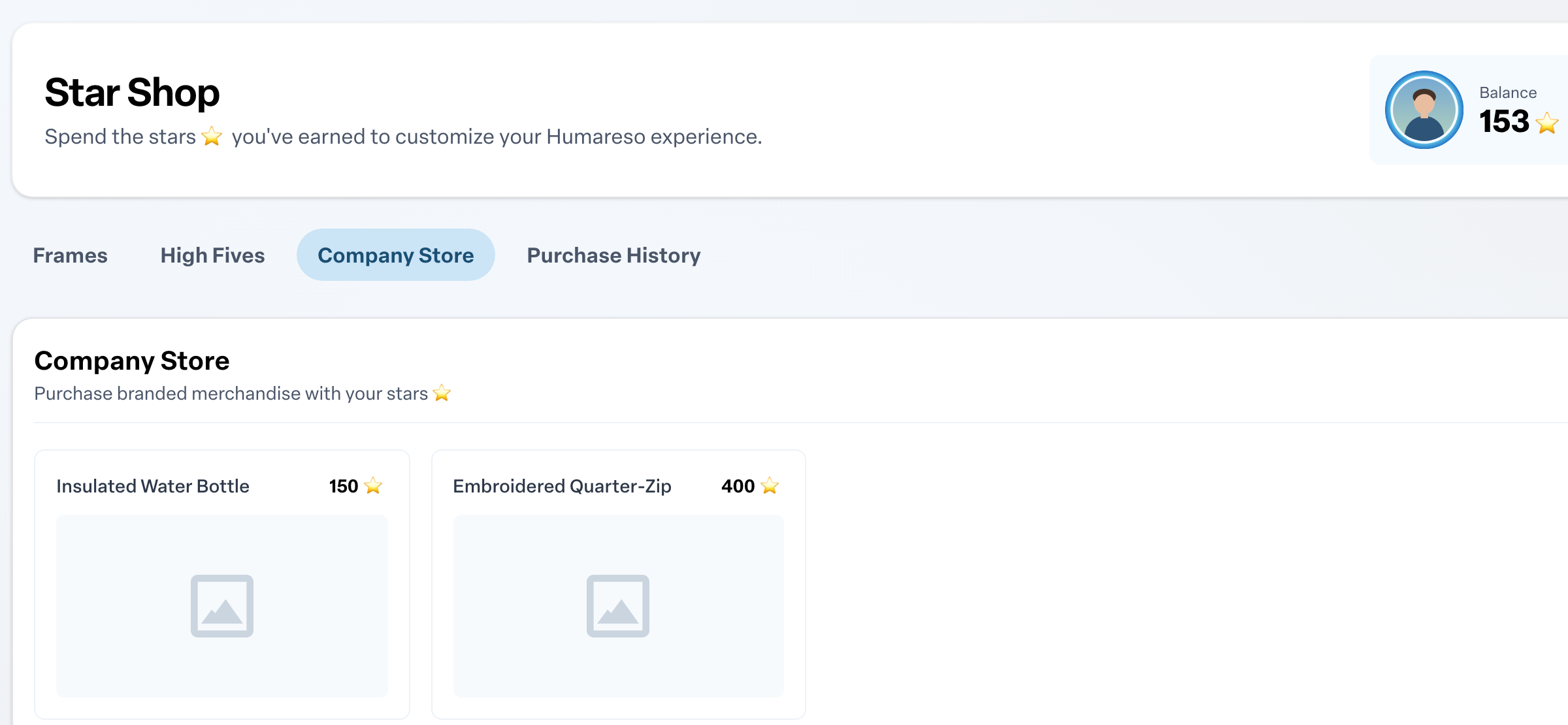
- Open the Company Store tab and choose an item.
- Pick a size under Sizes and a color under Select Color, if the item offers them.
- Select Purchase for to confirm.
You get an order confirmation email, and someone from your HR team reaches out to arrange delivery.
Check what you have bought
The Purchase History tab lists every purchase with the item, price and date. Use Sort by to see the most recent or oldest first.
Spending only lowers your balance. Your total points earned and your place on the leaderboard stay the same. To learn how to earn more, see How points work in Engage.