Finding feedback circles that need attention
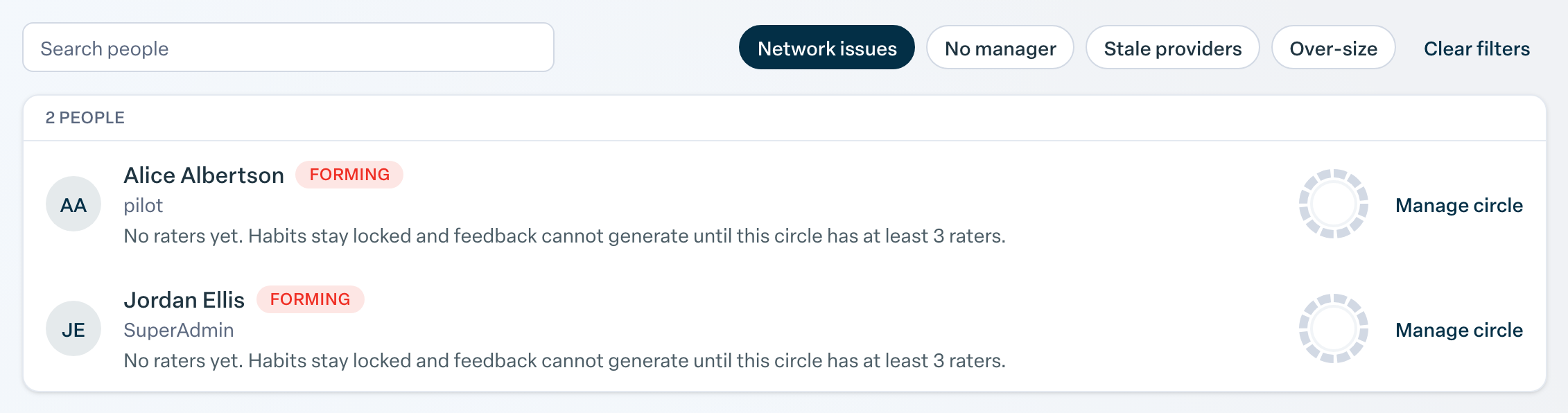
Open Circles in the left menu and turn on the Network issues filter to list everyone whose circle is too small to unlock feedback. Other filters catch missing managers, stale providers and oversized circles.
The old Networks Needing Attention tile is gone. Circle problems are now flagged on the Circles page, which admins and managers open from the left menu. Admins see everyone they can view; managers see the people who report to them.
Use the filters
At the top of the roster, turn on one or more filters:
- Network issues: people with active habits whose circle has fewer than three live feedback providers. Start here; a circle this small cannot produce useful feedback.
- No manager: people whose team manager is not one of their feedback providers.
- Stale providers: circles where providers have not been answering recently.
- Over-size: circles so large they are marked Overloaded.
Filters combine, and Clear filters resets them. If nobody matches you see No one matches these filters.
Read the health tier
Every row also shows a tier, so you can scan the whole roster without filtering:
- Forming: fewer than three providers.
- Established: three or four providers.
- Strong: five to twenty.
- Overloaded: more than twenty, which spreads each provider thin.
Fix a circle
Click Manage circle on the row. The circle page shows a Circle setup checklist and a Needs attention list of suggested fixes you can accept one at a time or with Accept high-confidence suggestions. Step by step instructions are in Checking and changing someone's feedback circle.
For managers
Managers can also open My team’s circles from the top of the Circles page. It shows team coverage (how many circles have enough providers to unlock habits) and lets you accept suggestions for several reports at once, or Seed circles from the org chart.