Why Did My Upload Fail?
Find the meaning of every document upload error in Leave, the limits behind it, and what to do next.
When an upload fails, Leave shows a message under the upload box. Each message points to one limit. Find your message below to see what it means and how to fix it.
The Limits at a Glance
- File types: PDF, DOC, DOCX, JPG, PNG, GIF, HEIC, TIFF. The other spellings of these formats (JPEG, HEIF, TIF) also work.
- Size: up to 100MB per file.
- Files at once: up to 20 files in one upload.
- Combining into one PDF: up to 20 files and 60MB in total. Only PDFs and images can be combined. The combine option only appears when your files fit these limits.
- Multi-page TIFF: up to 50 pages per file can be combined into a PDF.
Messages You See Before Uploading
"File too large. Maximum size is 100MB."
One of your files is over 100MB. Scan it at a lower resolution, or split it into smaller files.
"File type .xyz not allowed."
The file is not one of the accepted types. Save or export it as a PDF, or take a photo of the paper form and upload the JPG or PNG.
"You can upload up to 20 files at once."
You selected more than 20 files. Leave keeps the first 20. Upload those, then add the rest in a second upload.
Messages You See After Selecting Upload
"Upload did not complete. Please try again."
The file did not finish sending. Check your connection and upload it again.
"Combined files are too large. Maximum total is 60MB."
The files you asked to combine add up to more than 60MB. Combine fewer files at a time, or upload them separately.
".xyz files can't be combined into a PDF. Upload them separately."
Word files (DOC, DOCX) cannot be merged into a PDF. Remove the Word file from the set, combine the rest, and upload the Word file on its own.
"Too many files to combine. Maximum is 20."
Split the set into two combined uploads of 20 or fewer.
A TIFF "has more than the 50 we can convert at once"
You see this when combining files. The message names the file and its page count. Split the TIFF into smaller files and upload the parts separately.
"Could not combine these files into a PDF. Try uploading them separately."
One of the files could not be read while combining. Uncheck the combine box and upload the files one by one.
When Some Files Fail and Others Succeed
If you upload several files without combining them, each file is handled on its own. A file that fails is listed with its reason, and the other files are still saved. Re-upload only the file that failed.
When you combine files, it is all or nothing. If one file fails, nothing is saved, so a packet is never missing a page.
What Happens to TIFF and HEIC Files
TIFF and HEIC files are turned into PDFs automatically, because most devices cannot open them. If the conversion fails, Leave keeps your original file so your paperwork is never lost.
What You'll See
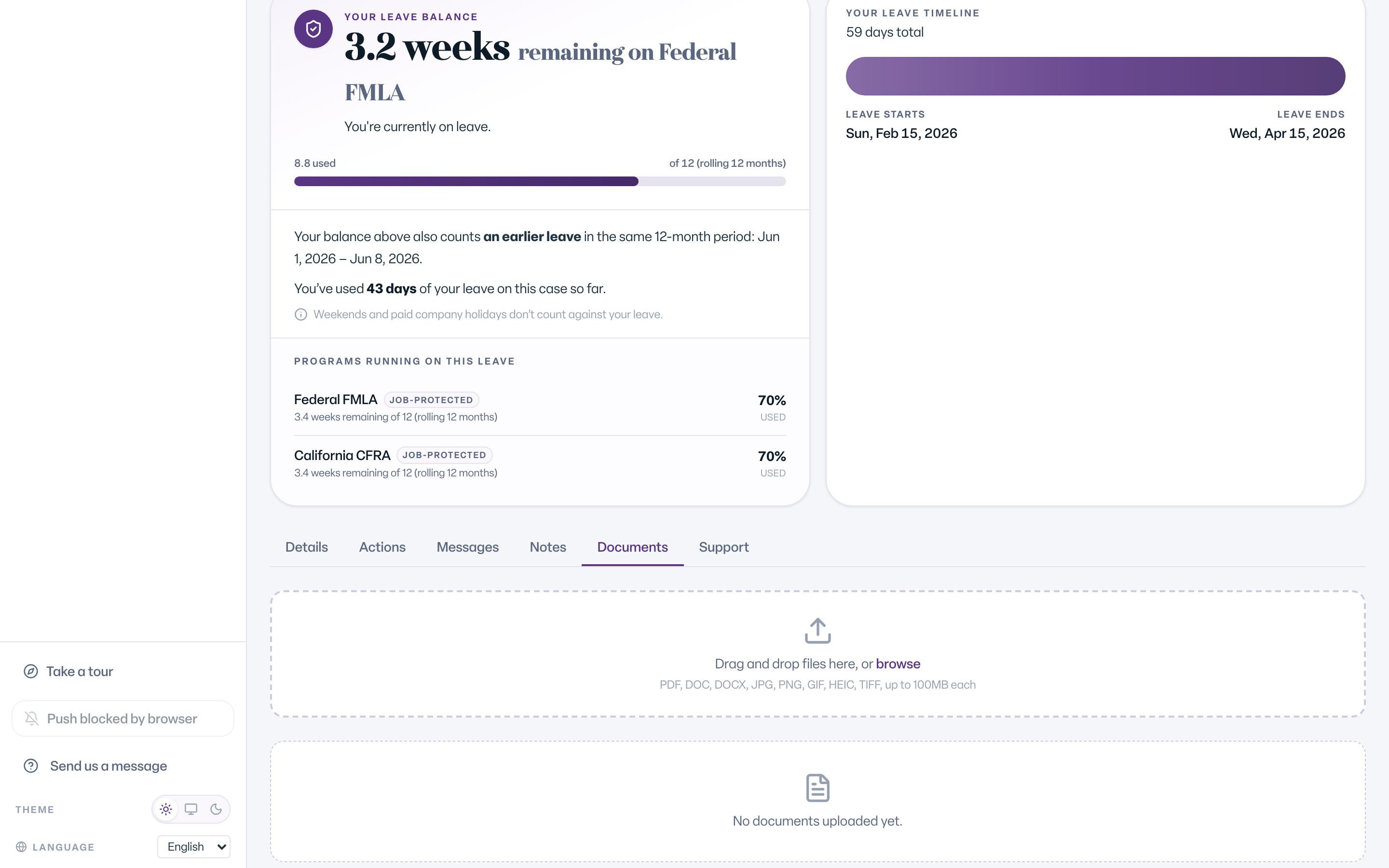
The upload box says Drag and drop files here, or browse and lists PDF, DOC, DOCX, JPG, PNG, GIF, HEIC, TIFF, up to 100MB each. Errors appear in red under the box.
Common Scenarios
- A phone photo of a form. JPG, PNG, and HEIC all work. HEIC photos from an iPhone are turned into PDFs for you.
- A scanned multi-page form. Upload the PDF as it is, or combine page photos into one PDF. See How to Combine a Multi-Page Form into One PDF.
- A form your doctor sent as a Word file. Upload it on its own, without combining.
- A very large scan. Rescan at a lower resolution to get under 100MB.
Troubleshooting
I don't see an upload box. Uploading happens on the Documents tab of your case. If you do not have a Documents tab, your role on the case does not include documents.
My upload still fails after trying everything. Attach the file to a message to your leave team, or email leave@humareso.com. See Send Us Your Medical Certification & Documents.