Leave & PTO
Beginner
How to Use Your Messages Inbox
Read and reply to your conversations with the Leave team, and search and filter the messages on a case.
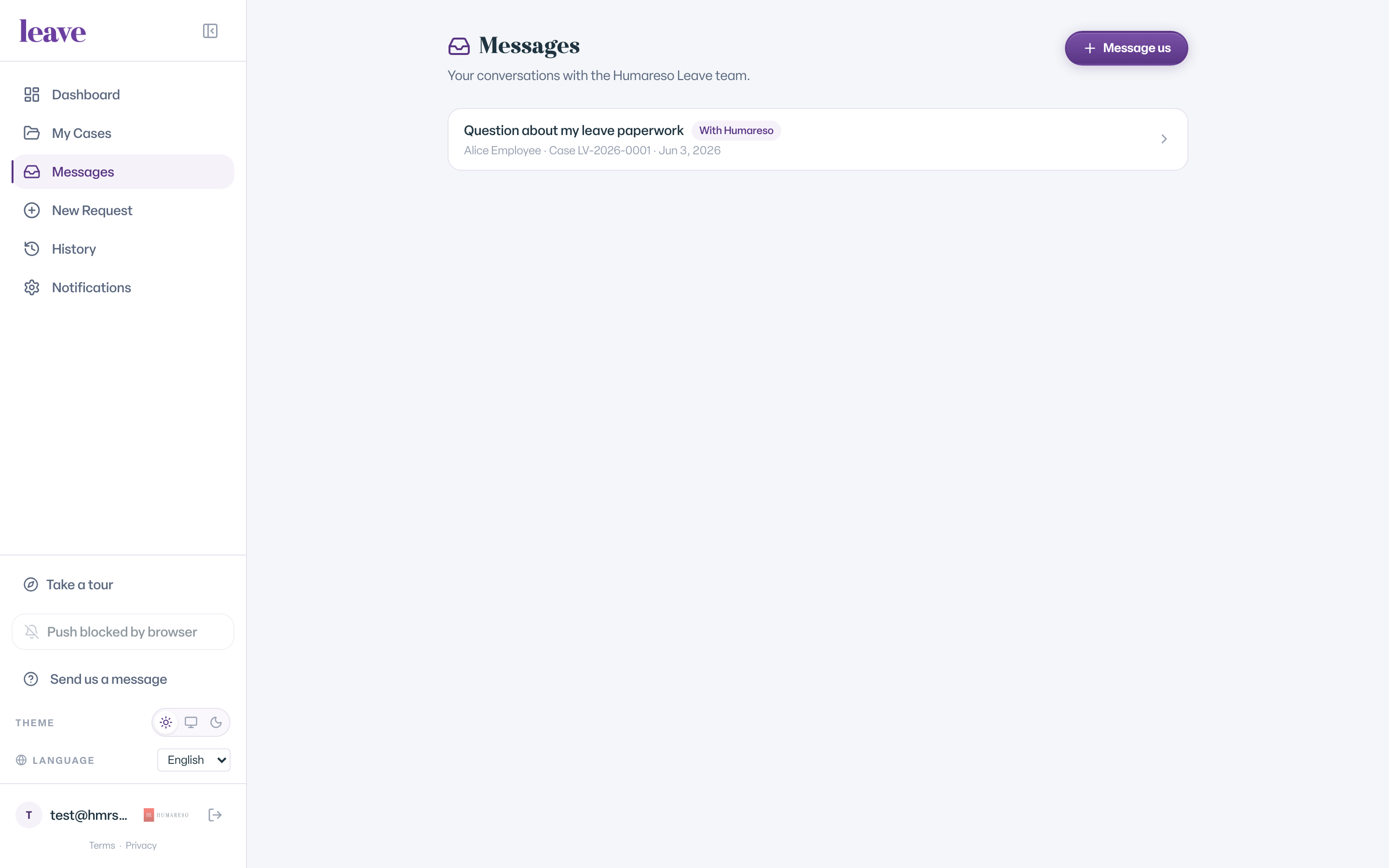
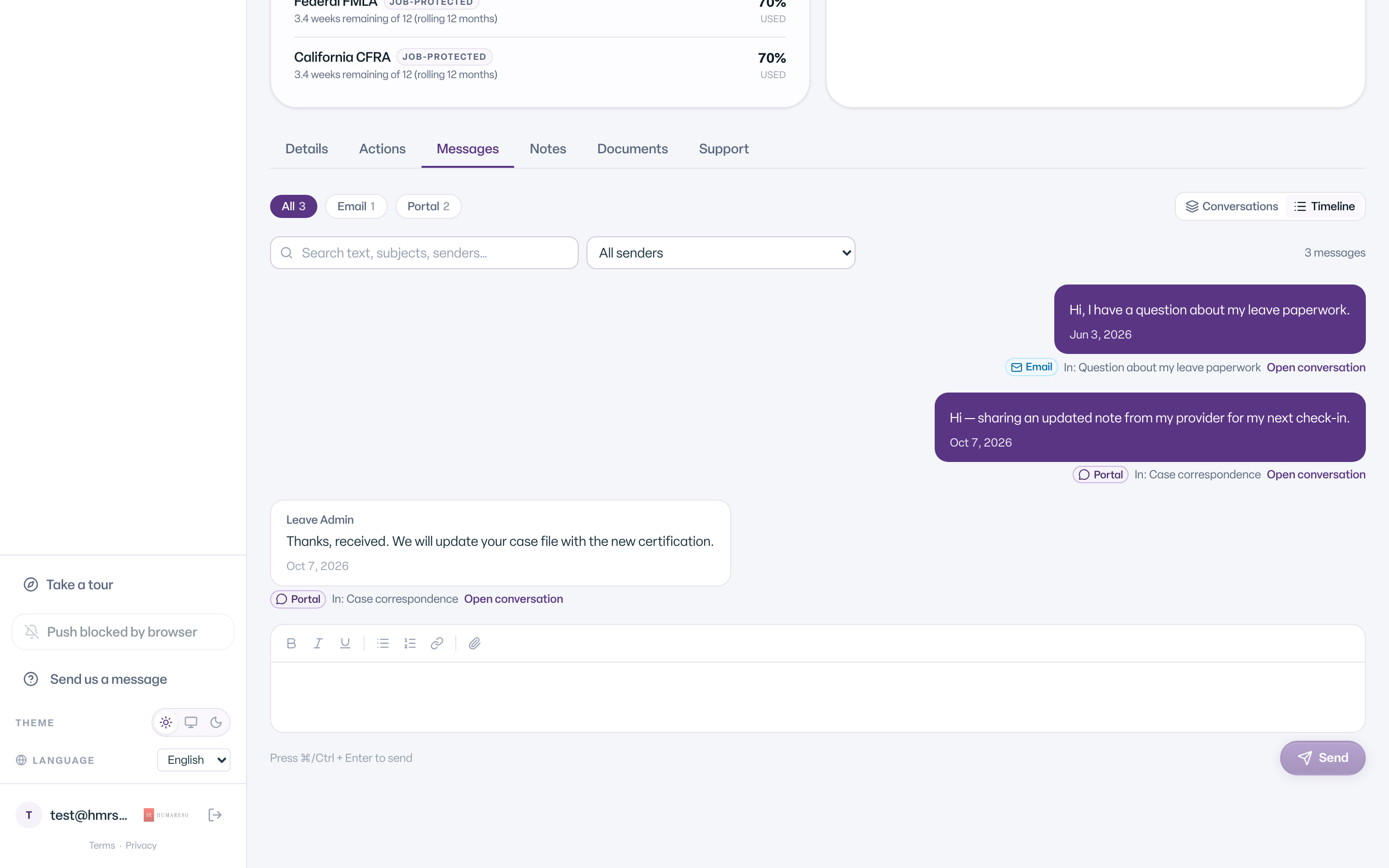
Leave keeps your conversations with the Humareso leave team in two places. The Messages page lists every conversation you have. The Messages tab on a case shows everything sent on that case, with search and filters.
Read Your Conversations
- Select Messages in the menu.
- Look at the list. Each row shows the subject, who it is with, the case number, the time of the last message, and a status chip.
- Select a conversation to open it.
- Type your reply at the bottom and send it.
The top of the page tells you how many conversations are awaiting your reply.
What the Status Chips Mean
- Awaiting your reply. The team is waiting to hear from you.
- With Humareso. The team has your message and is working on it.
- Resolved. The conversation is closed. You can still read it.
Start a New Conversation
- On the Messages page, select Message us.
- Under About a case (optional), choose a case or leave it as No specific case.
- If you see Include others from this case, check anyone you want copied.
- Type your message where it says What can we help with?
- Select Send.
Search and Filter Messages on a Case
- Open your case and select the Messages tab.
- Use the channel buttons to filter. All shows everything. Other buttons, such as Email, Portal, SMS, or Fax, appear only when the case has messages of that kind.
- Type in Search text, subjects, senders… to find words in messages.
- Choose a person from All senders to see only their messages.
- Select Clear filters to start over.
Conversations or Timeline
- Conversations groups messages into threads. Automated emails are grouped under Automated notices, and messages written in Leave under Case correspondence.
- Timeline shows every message in date order.
When you search, select Open conversation on a result to see it in context, then Back to results to return.
What You'll See
Common Scenarios
- You have a question about your case. Use Message us on your case page so the message is linked to it.
- You are looking for an old email from the team. Open the case Messages tab and search for a word you remember.
- Nothing matches your search. You see No messages match these filters. Select Clear filters.
- You have no messages yet. The page says You don't have any messages yet.
Troubleshooting
"We couldn't load your messages." Refresh the page and try again.
I don't have a Messages tab on a case. Your role on the case does not include messages. See Is my message thread private?