Using AI to draft objectives
Start with AI turns three plain answers into a draft set of objectives; Suggest ideas, Suggest a measure and Draft team objectives help inside the board. Nothing is created until you choose it.
A blank Objectives board is the hardest place to start. If your organization has AI features turned on, Engage can draft objectives for you to edit. Every AI suggestion is marked in teal, and none of them is saved until you pick it.
Start with AI: your first set of objectives
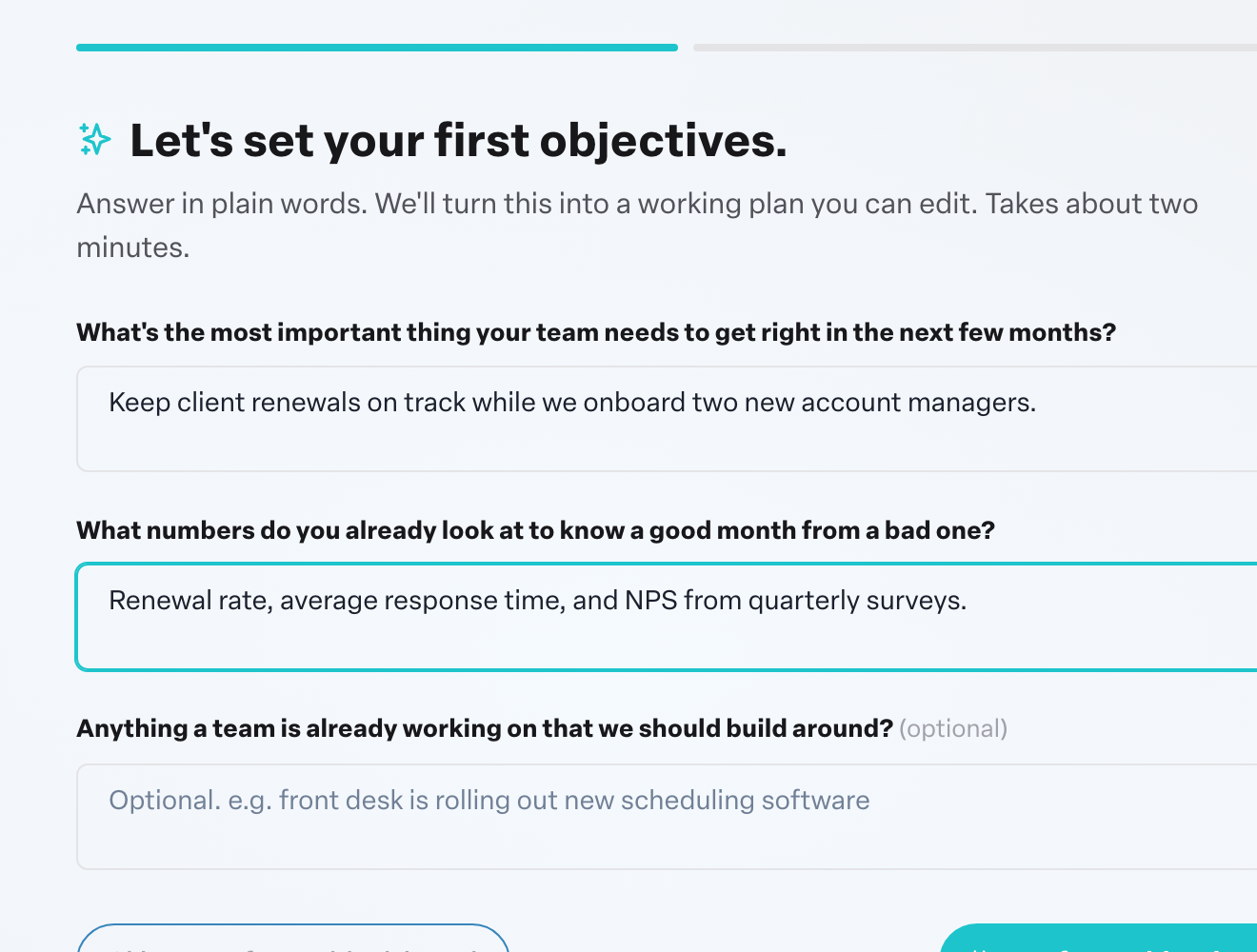
- Go to Objectives and press Start with AI.
- Answer the three questions in plain words:
- What's the most important thing your team needs to get right in the next few months?
- What numbers do you already look at to know a good month from a bad one?
- Anything a team is already working on that we should build around? (optional)
- Press Draft my objectives.
Engage shows Here's your draft plan. Each draft has key results and a short Why this works: note. Rename anything, and uncheck any draft you do not want. Then press Create (the button shows how many, for example Create 2 objectives). Each one is created with you as the owner, starting today and due in 90 days, with the check-in cadence shown on the card.
Rather start from nothing? Press Skip, start from a blank board. To change your answers, press Back to my answers.
If the AI drafter is unavailable, Engage fills the plan with generic starters and says so at the top. They are editable examples, not based on your answers; go back and try again in a moment for tailored drafts.
Suggest ideas in the New Objective dialog
When you press New Objective, press Suggest ideas at the top of the dialog. Engage proposes objectives that fill gaps in what already exists, each with key results. Pick one and the form fills in; edit anything before you save. Refresh asks for a new set.
Suggest a measure for a key result
If a key result reads like a task ("Launch the new onboarding"), Engage notes: This reads like a task. What number will tell you it worked? Press Suggest a measure beside it for two or three measurable rewrites. Pick one, or press Keep my wording.
Ideas for an empty board
Managers and admins who see an empty In Progress column get a few ✦ Suggested objectives in its place. Press Add to create one owned by you, or Dismiss to drop it.
Draft team objectives under a big one
On an objective's page, its owner and admins see Draft team objectives. Choose the teams under Pick teams to draft for and press Draft for the number of teams. Engage drafts one aligned child objective per team. For each, press Add to create it as a sub-objective attached to that team (owned by you, so reassign the owner afterwards) or Skip. See Related objectives.
OKR Jumpstart for admins
On the Admin tab, admins can press Request an OKR Jumpstart. Engage shows a preview of a starting set of objectives, and a Humareso advisor reaches out to book a working session to build the real set with you.
Turning AI off
Admins control all AI features from one switch. See AI settings and AI activity.
More in Objectives
- Related objectives: parents and sub-objectivesBeginner
- Reading the completed objectives heatmap on your Team DashboardBeginner
- Using your Objectives board day to dayBeginner
- How do I see who changed a key result?Beginner
- Why can't I type a value into a key result?Beginner
- Does a milestone count toward the objective's completion?Beginner