Updating Key Results and Checking In
Move a number, mark a milestone done, answer a check-in card, and see who changed what. Everything Engage needs to keep an objective honest happens in a few clicks.
An objective is only as useful as its latest numbers. Engage gives you three places to update a key result, and every update is recorded so the objective's history is visible to everyone who follows it.
On the objective page
Open the objective and find the Key Results panel. Each metric has a number field: type the new value and press Enter or click away to save, or press Escape to put the old value back. Each milestone has a Mark done toggle; press it again to undo.
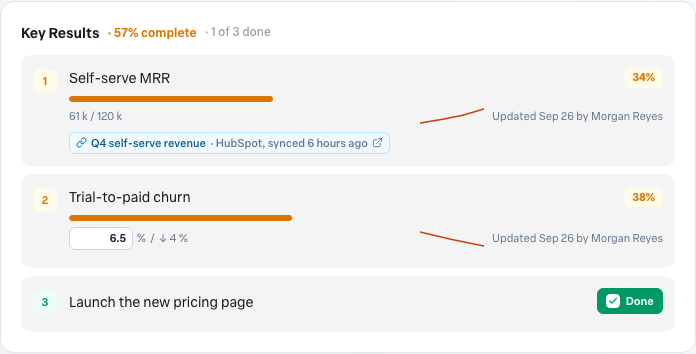
The percentage beside each key result is its progress from the starting value toward the target. The header shows the average across the measurable key results and a real count of how many are done. Under a metric, the small line chart and the note "Updated Sep 28 by Morgan Reyes" show the last change; hover to see how many updates there have been.
On the check-in card
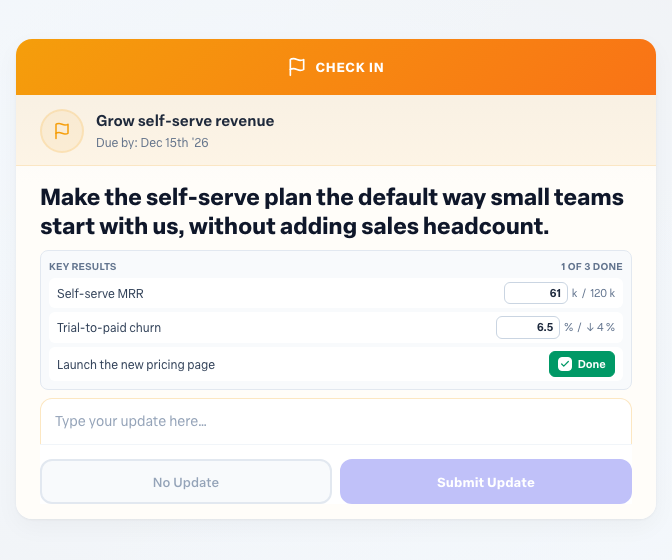
On the cadence you chose, the owner gets a check-in card on the dashboard. The card lists up to three key results with the same number fields and Done toggles, and a count of how many are done. Update the numbers, then answer whether the objective is on track or off track. If the objective has more key results, press the expander to see them all.
In the review
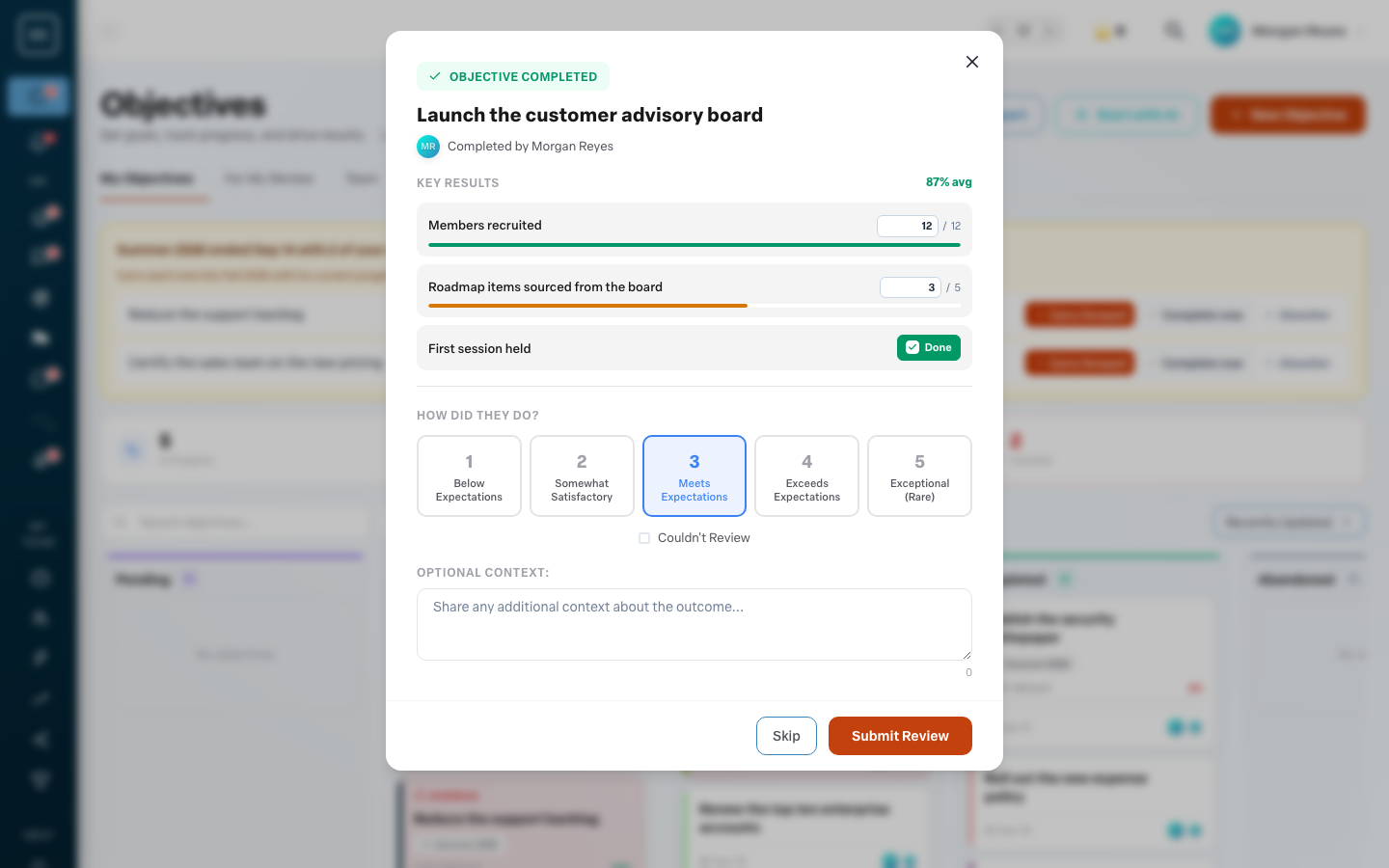
When an objective reaches its delivery date or the owner sends it for review, it moves to Awaiting Review. Reviewers open it from the board, see every key result and its completion, and can still correct a number before scoring the objective.
Who can update a key result
- The objective's owner, its creator and its stakeholders.
- The key result's own owner, if one was assigned, even when they cannot edit the rest of the objective.
- The owner's team manager and organization administrators.
Everyone else sees the values read-only. If you expected to be able to edit and cannot, ask the owner to add you as a stakeholder.
Linked key results
A key result that is linked to a goal on another platform shows a chip with the platform name and when it last synced. Its value is read-only in Engage because the platform is the source. See Linking a key result to an external goal.

Keeping the objective current
Engage marks an objective Stale when nobody has answered a check-in or moved a key result for two check-in intervals, and at least 14 days. The badge shows on the board and on the objective, and the owner gets an extra check-in card. Read Keeping objectives current.
More in Objectives
- Using AI to draft objectivesBeginner
- Related objectives: parents and sub-objectivesBeginner
- Reading the completed objectives heatmap on your Team DashboardBeginner
- Using your Objectives board day to dayBeginner
- How do I see who changed a key result?Beginner
- Why can't I type a value into a key result?Beginner