A Tour of Your Case Page
Learn what each tab and section of your leave case page shows, and where to find the actions you need.
Your case page is the home for everything about your leave. This tour walks through the classic layout: the header, the tabs, and what each section of the Details tab tells you.
Open Your Case
- Sign in to leave.humareso.com.
- On your dashboard, select View case, or go to My Cases and select your case.
The Header
At the top you see the case name, a status badge, and your key dates. Depending on your case, you may also see:
- Message us, to send a question to your leave team.
- Request Extension, to ask for more time while your leave is active.
- An alert such as Your leave ends in 5 days, with a link to request an extension.
- An ADA Accommodation Review banner, if your case is being reviewed for an accommodation.
Use Back to cases to return to your case list.
The Tabs
- Details. The facts of your case: status, dates, programs, and decisions.
- Actions. What the case needs from you right now. See How to Use Your Action Items in Leave.
- Messages. Every message on the case. See How to Use Your Messages Inbox.
- Notes. Notes your leave team has shared with you about this case.
- Documents. Files on the case and the upload box. See Your Documents Tab: Where Files Came From and Why One Will Not Open.
- Support. Support requests about your case and their status, such as In progress or Resolved.
You may see fewer tabs if your role on the case is limited.
The Details Tab
Status Steps
A row of steps shows where your case is in the process, from intake to a decision.
Case Information
- Status and Determination.
- Requested Dates, or Current Dates once your leave has been extended. An extended case also shows the Original end date.
- Estimated Return and, after you return, Actual Return.
- Work State.
- Summary.
Programs and Decisions
- Applicable Programs lists the leave programs on your case, such as FMLA or a state program.
- Program Eligibility Determinations shows the decision for each program.
Time Off
Time off on this case lists vacation, sick, or other PTO days connected to your leave.
Intermittent Leave
If your leave is intermittent, the Approved frequency and duration card shows how often and how long you can be out. See How Your Intermittent Time Gets Recorded.
Try the New Case Page
A banner at the top says Try the new case page. with a Beta label. Select Try the new page to switch to a simpler layout with the same information and tools. Select Back to the classic page to switch back at any time. Your choice is remembered on that browser.
What You'll See
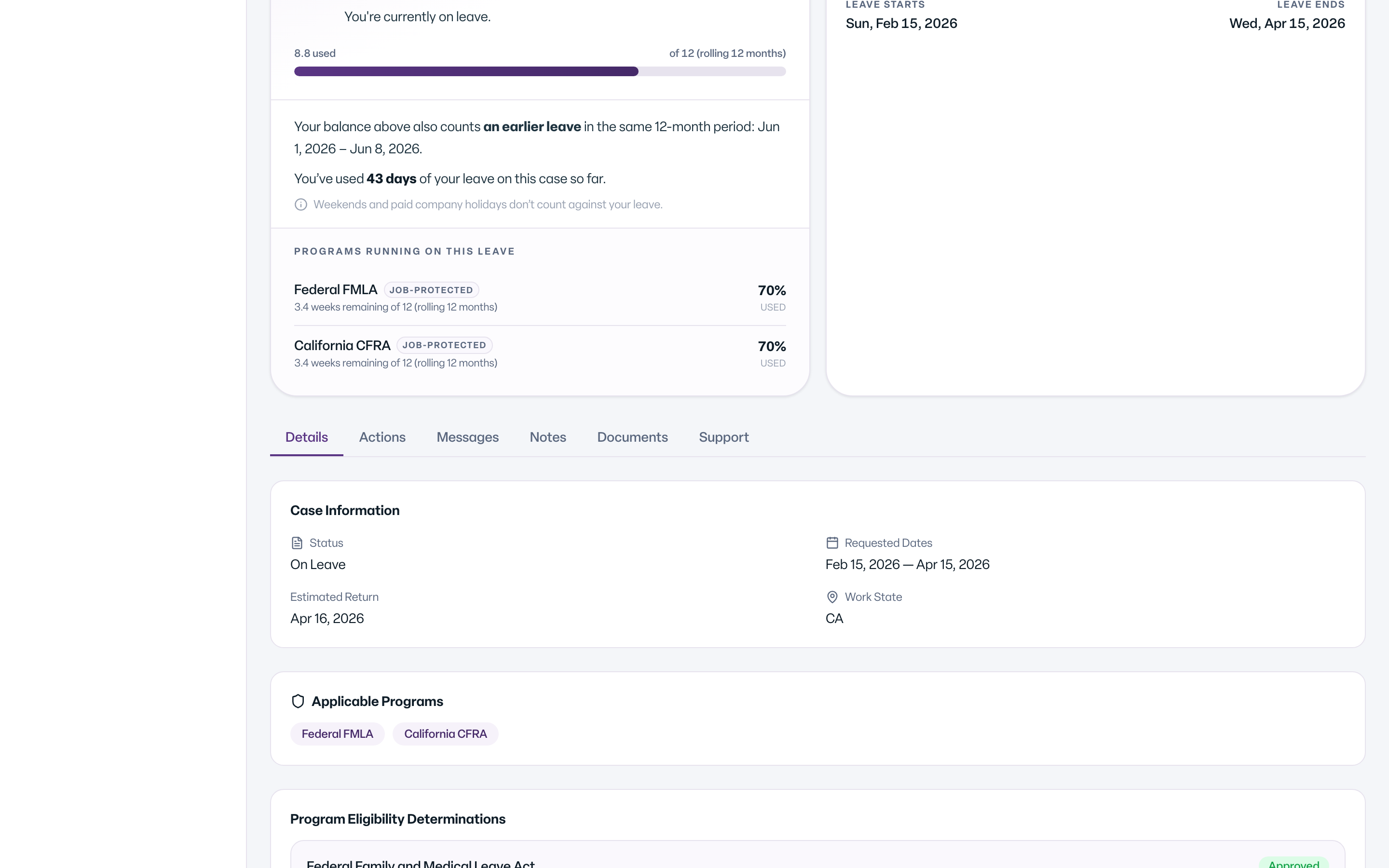

Common Scenarios
- You want to know what happens next. Check the status steps and the Actions tab.
- You need more time. Select Request Extension. See Request an Extension.
- You can't find a document. Open the Documents tab.
- Some details are hidden. If you see Medical and clinical details are visible only to the case's HR Partner and the Leave team., you are not the employee or HR Partner on the case. See What can I see when I open a case?