Using your Objectives board day to day
Find your objectives with the tabs, search and filters, move them through the board, and talk about them in comments.
Objectives in Engage live on one board. This guide covers the everyday part: finding the right objectives, moving them along, and keeping the conversation next to the work. To create one, see Creating an objective in Engage.
The tabs
Open Objectives in the left navigation. The tabs across the top decide whose objectives you see:
- My Objectives. Objectives you own.
- For My Review. Objectives where you are a stakeholder.
- Team. Objectives owned by your team. You see this tab if you manage a team.
- All. Every objective you are allowed to see.
- Admin. The organization view, for admins only. See Administering OKRs in Engage.
Switch between Kanban and List with the toggle at the top right.
The board
The Kanban view has five columns: Pending, In Progress, Awaiting Review, Completed and Abandoned. Open the menu on a card for the quick actions you are allowed to take, such as Edit, Duplicate, Add Sub-Objective, Mark Complete or Abandon. Press the card itself to open the objective page.
Search and filters

The filter bar works on whichever tab you are on:
- Type in Search objectives... to match by name.
- Narrow by Owner, Stakeholder, Confidence, Season or Team.
- Press Stale to show only objectives that have gone quiet. What Stale means.
Filters combine, so you can ask for "my team's stale objectives this season" in three clicks. Export at the top exports what you are looking at as a Spreadsheet (CSV) or a Document with comments (PDF).
Comments
Every objective page has a Comments section below the key results.
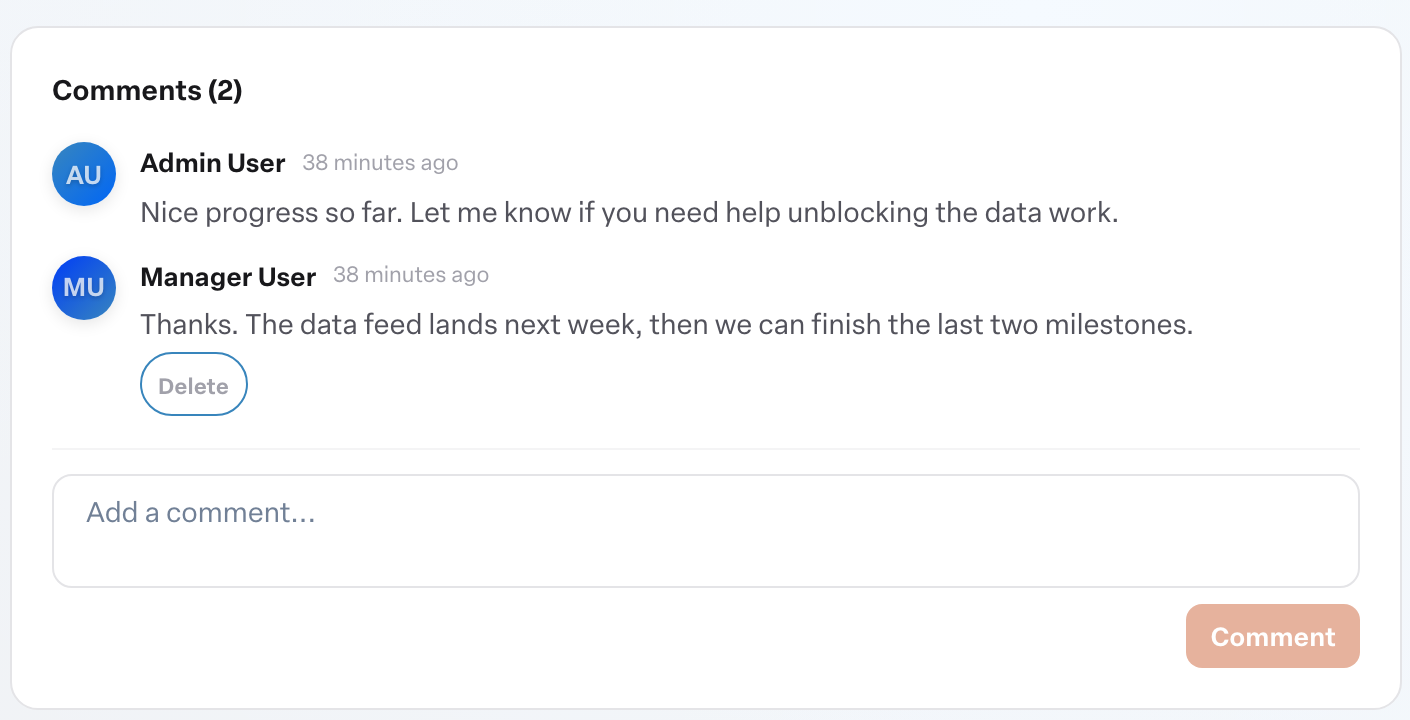
- Open the objective.
- Type in Add a comment....
- Press Comment.
Everyone who can open the objective can read the thread. You can delete your own comments with Delete; you cannot delete anyone else's. Use comments for the context a number cannot carry: why a key result moved, what is blocking it, what you need from a stakeholder.
Updating progress
Progress comes from key results and check-ins, not comments. See Updating key results and checking in.
More in Objectives
- Using AI to draft objectivesBeginner
- Related objectives: parents and sub-objectivesBeginner
- Reading the completed objectives heatmap on your Team DashboardBeginner
- How do I see who changed a key result?Beginner
- Why can't I type a value into a key result?Beginner
- Does a milestone count toward the objective's completion?Beginner