Leave & PTO
Beginner
How to Copy Other Case Contacts on a Message
Include your manager, HR partner, or others on your case when you send a new message to the leave team.
When you start a new message to the leave team about a case, you can include other people already on that case. They get a copy so everyone stays in the loop.
Copy Others on a New Message
- Open your case and select Message us. You can also select Message us from Messages.
- If you started from Messages, choose the case under About a case (optional).
- Under Include others from this case, tick each person you want to copy. Each name shows their role, such as Manager, Requestor, or HR partner.
- Type your message.
- Select Send.
What You'll See
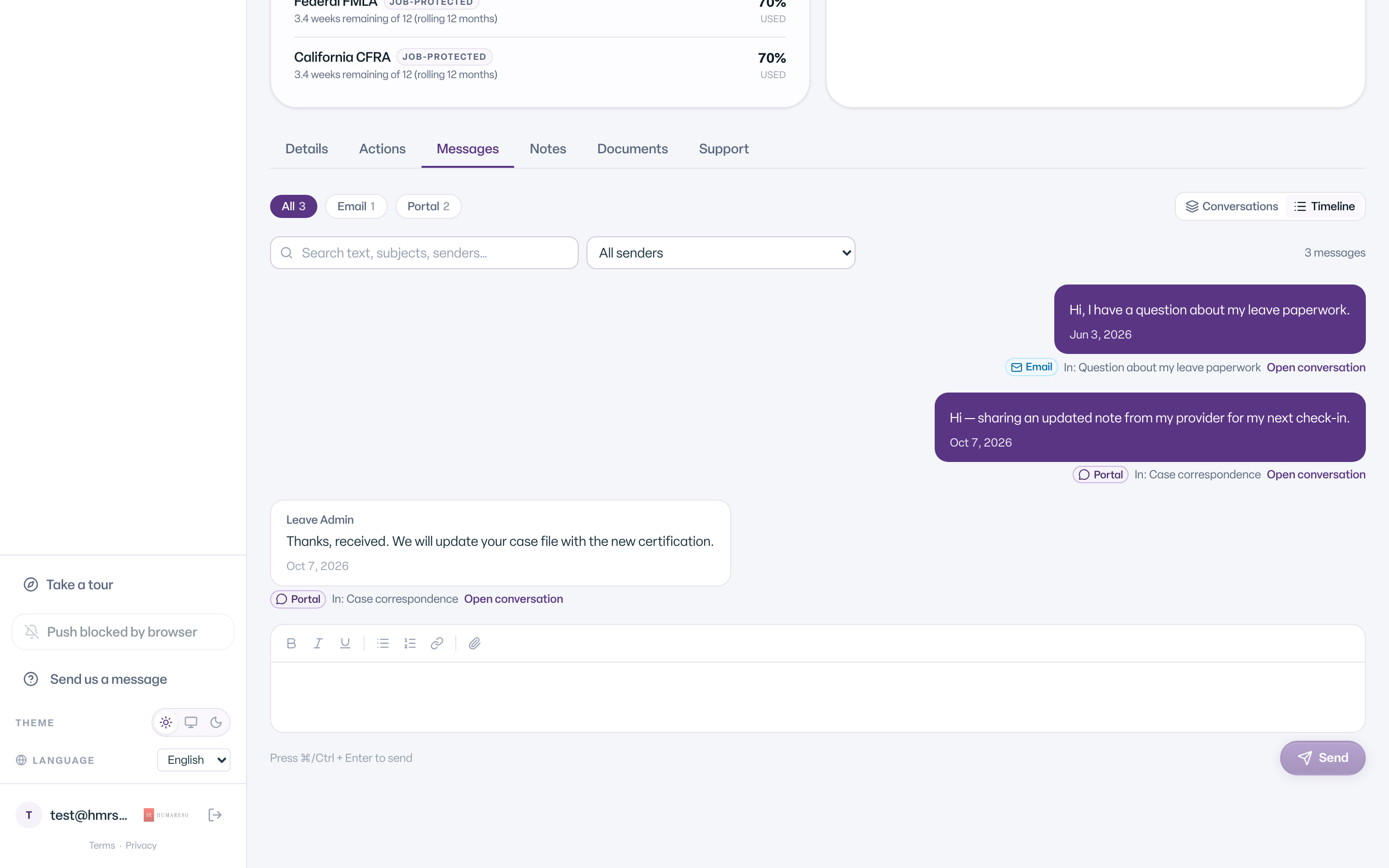
The Message Humareso Leave dialog lists only people already on the case. You do not see or type their email addresses; Leave fills them in for you.
Common Scenarios
- You do not see Include others from this case. No one else on the case can be copied, or you have not chosen a case yet.
- You choose No specific case. The message goes to the leave team only.
- You want to add someone who is not on the case. Ask the leave team in your message.
Tips
- Do not include anyone on a message that contains medical details they should not see.