Leave & PTO
Beginner
How to Use Leave on Your Phone
Find your way around Leave on a phone using the top bar, the bottom menu bar, and the More menu.
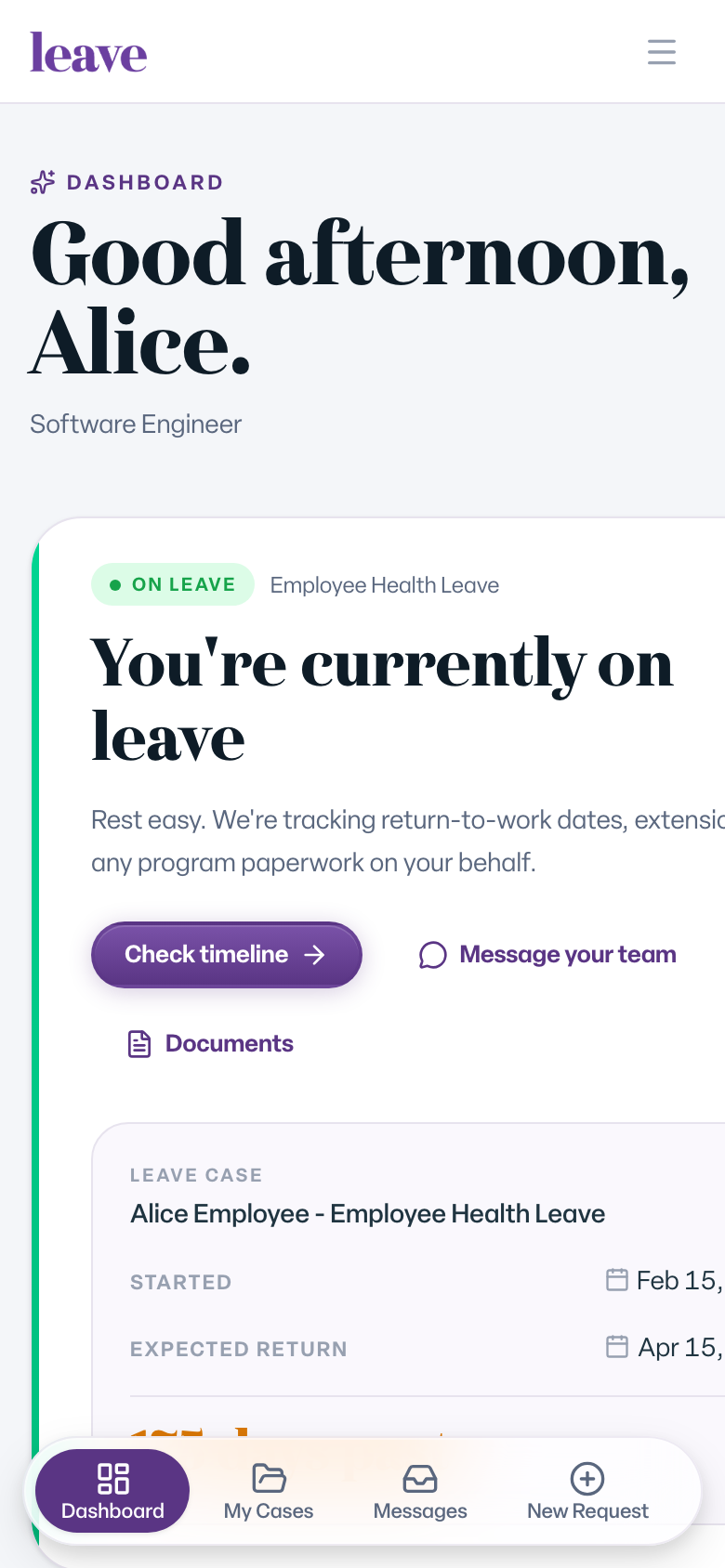
Leave works in your phone's web browser with no app to install. On a small screen, the sidebar is replaced by a top bar, a menu bar along the bottom, and a slide-out menu.
Get Around on a Phone
- Open leave.humareso.com in your phone's browser and sign in.
- Use the menu bar at the bottom of the screen to move between pages, such as Dashboard, My Cases, and Messages. The page you are on is highlighted.
- If not every item fits, swipe the bottom bar sideways to see the rest.
- Select More at the end of the bar to open the full menu.
Use the More Menu
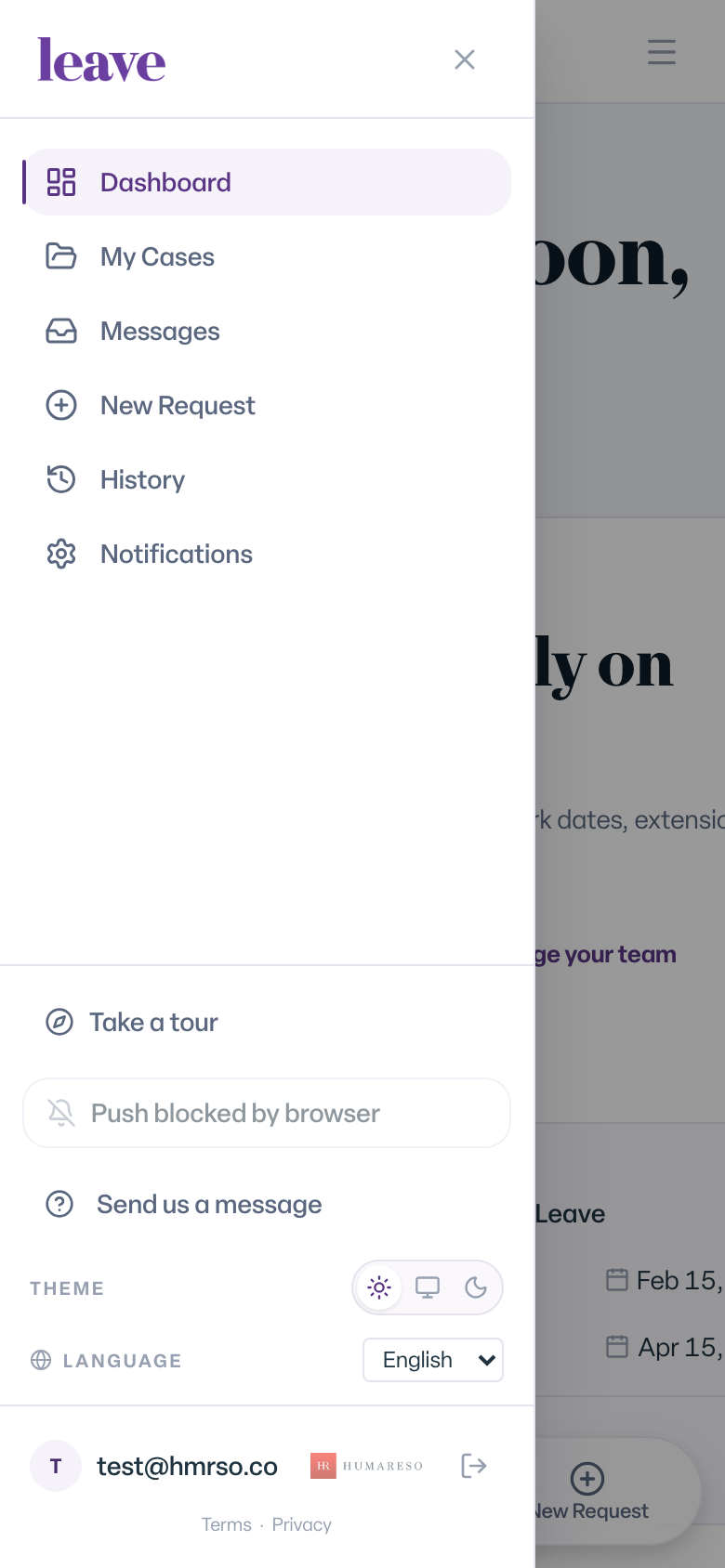
The More menu holds everything else:
- Take a tour
- Turn on push notifications
- Send us a message
- Theme and language
- Your account and Sign out
You can also open the same menu with the menu button in the top-right corner of the top bar. To close it, select the close button, tap outside it, or go to another page.
What You'll See
Common Scenarios
- You see a small badge on a menu item. Something there needs your attention.
- The chat bubble covers part of the page. Scroll a little further; pages leave room at the bottom for it.
- You want the full sidebar. Turn your tablet sideways or use a computer. The sidebar appears on wider screens.
- You want to upload a document from your phone. Open the case, go to Documents, and choose a photo or file. See Why Did My Upload Fail? if it does not go through.