How to Request Leave on Behalf of Someone Else
Start a leave or accommodation request for a family member, an employee, or a teammate, and send them a secure link to follow it.
You can start a leave or accommodation request for someone else in about five minutes. Leave opens a case for them and emails them a secure link to follow it. Their case and its updates belong to them, so the link goes to them, not to you.
Before You Begin
- Their first and last name, and their work email (the address their employer has on file).
- Their employer's name and the state they work in.
- Your best guess at the leave dates. Estimates are fine, and no medical paperwork is needed today.
- Optional: a personal email or mobile phone they can still use while they are out.
Start the Request
- Go to leave.humareso.com and choose to start a request. If you are already signed in, select New Request.
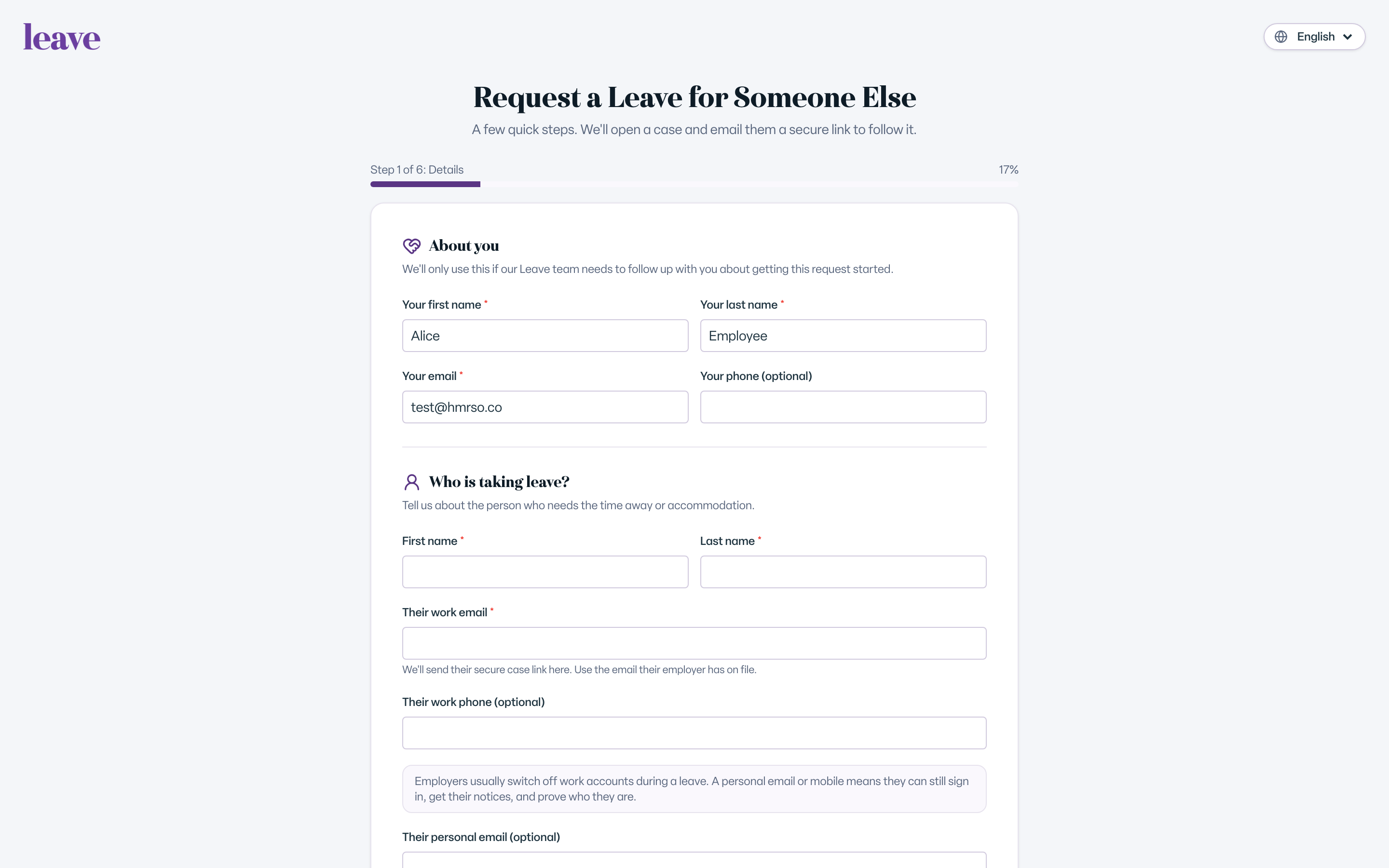
- Under Who is this request for?, select I'm helping someone else.
- Under How do you know them?, choose Family member, HR for their employer, Their manager, or Someone else.
- Enter your own details when asked.
- Select Next.
Tell Us Who Is Taking Leave
- Under Who is taking leave?, enter their first and last name.
- Enter Their work email. We send their secure case link here.
- Optionally add Their personal email (optional) and Their mobile phone (optional). Employers usually switch off work accounts during a leave, so these help them keep access.
- Enter Their employer (company name). If we recognize it, you see We recognize their employer. You're in the right place.
- Select Next.
Describe Their Leave
- Choose whether they need a leave or a workplace accommodation.
- Pick the closest reason. Their leave coordinator can refine it later.
- Choose whether the leave is continuous or intermittent.
- Enter the estimated start and end dates.
- Under Where do they work?, choose their work state. If they work remotely, use the state they work from, not their employer's headquarters.
- Add optional notes that might help their leave coordinator.
Review and Submit
- On Review the request, check each section. Select Edit to change anything.
- Read the responsibilities. They belong to the person taking leave, and the leave team goes over them with that person directly.
- Select Submit request.
By submitting, you confirm the person knows you are starting this request and that the details are accurate to the best of your knowledge.
What You'll See
After you submit, you see the case number and a confirmation that we sent them a secure link. Updates about the case go to them directly.
Common Scenarios
- They already have a case in progress. We do not open a second one. We send them a sign-in link at the address on file.
- We could not email them. A Humareso Associate reaches out to them shortly.
- You are their manager or HR contact. Starting the request does not give you access to their case or medical information. Your company's access to cases is set up separately.
- The leave runs many weeks in one stretch. The form may ask whether they meant intermittent leave. Either answer continues the request.
Troubleshooting
They cannot find the email. Ask them to check spam. If it is not there, email leave@humareso.com.
You do not know their exact dates. Enter your best estimate. They can adjust dates with their leave coordinator once their doctor provides paperwork.