How to Combine a Multi-Page Form into One PDF
Upload several pages or photos as one PDF so your form arrives as a single complete document.
Insurers require a single document per submission. If your form is several photos or separate files, Leave can merge them into one PDF as you upload. You do this on the Documents tab of your case.
Before You Begin
- Have every page ready as a PDF or an image (JPG, PNG, GIF, HEIC, or TIFF).
- Word files (DOC, DOCX) cannot be combined. Upload those on their own.
Combine and Upload Your Pages
- Open your case from your dashboard or My Cases.
- Select the Documents tab.
- Drag your files onto the upload box, or select browse and choose them.
- Check the list of files. Pages are merged in the order listed.
- To add a page you missed, drop or browse for it. It is added to the end of the list.
- To take a page out, select Remove next to it.
- Make sure Combine N files into one PDF is checked. It is checked by default when the files can be combined.
- Select Combine & upload.
When the upload finishes, one PDF appears in your documents list.
Get the Order Right
Leave merges pages in the order you added them. If the order is wrong, select Clear all and add the pages again, first page first.
What You'll See
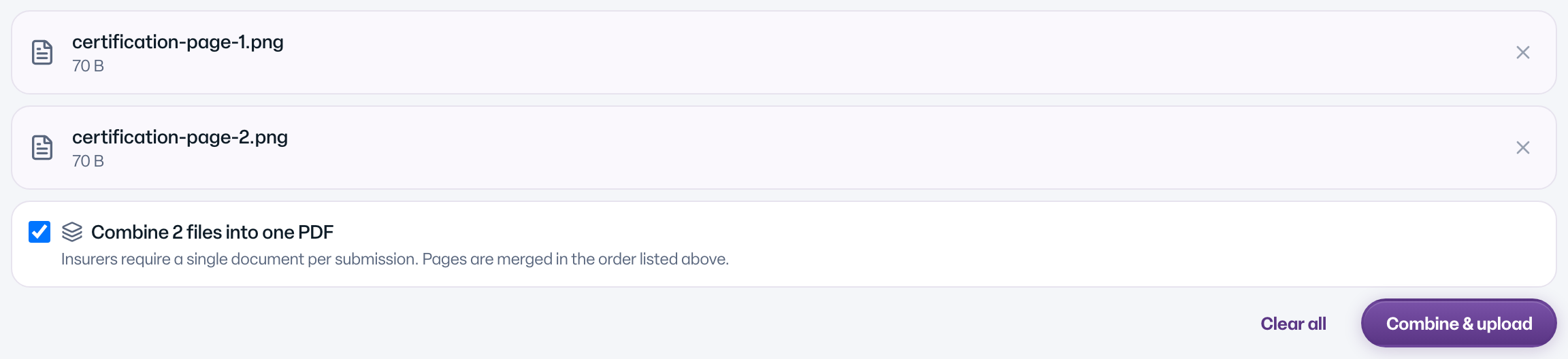
- Your selected files listed under the upload box.
- The option Combine N files into one PDF, with the note Insurers require a single document per submission. Pages are merged in the order listed above.
- The button changes from Upload to Combine & upload while combining is on.
Limits
- Up to 20 files in one combined PDF.
- Up to 60MB of files in total.
- A multi-page TIFF can have up to 50 pages.
If your files are over a limit, the combine option does not appear. See Why Did My Upload Fail? for every message.
Common Scenarios
- You photographed each page with your phone. Select all the photos at once, check the order, and combine.
- You have a PDF plus one extra photo. Add the PDF first, then the photo. Combine them.
- You want separate documents instead. Uncheck the combine option and select Upload. Each file is saved on its own.
- A Word file is in the set. The combine option disappears. Remove the Word file, combine the rest, then upload the Word file separately.
Troubleshooting
The combine option is missing. You have only one file, a file that cannot be combined, or more than 60MB in total. Remove the file that does not fit.
The upload failed and nothing was saved. A combined upload is all or nothing, so a packet is never missing a page. Fix the file named in the message and try again.