Manager: how to run a 1:1 in Engage
Managers find their 1:1s under My Team, Team 1:1s. Create one with New One-on-One, build talking points, make your comments visible, then submit.
Engage gives each 1:1 a shared agenda, a place for your notes, and the person's habit and objective data in one view. This guide is for managers. For the coaching side of the conversation, see the free Effective One-on-One Meetings course.
Find your 1:1s
Open Team 1:1s under My Team in the left navigation. You see it if you manage a team.
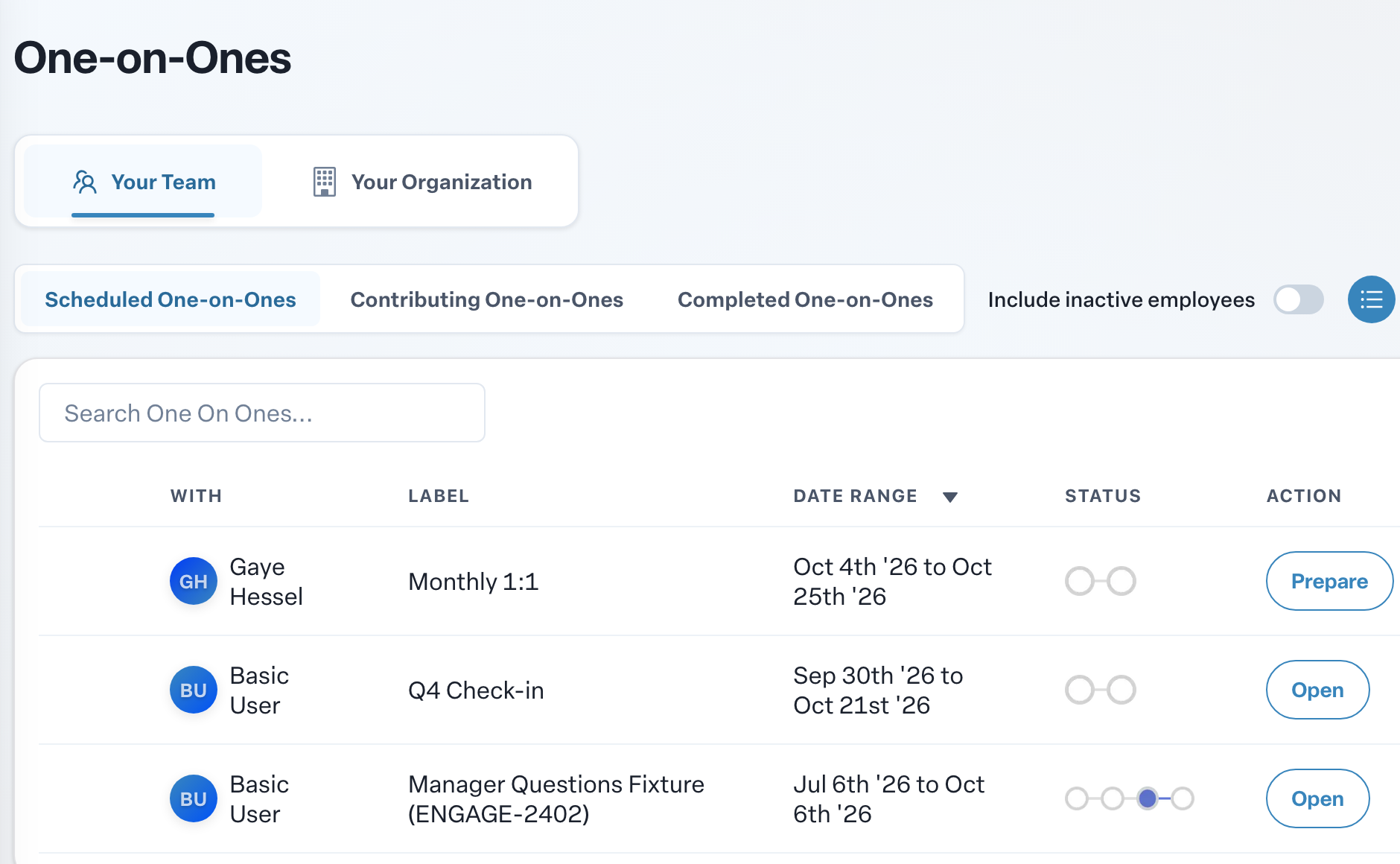
- Your Team lists 1:1s with your direct reports. Your Organization lists 1:1s further down your reporting line.
- Scheduled One-on-Ones are still to do, Contributing One-on-Ones are ones you were added to, and Completed One-on-Ones are done.
- Each card shows the date range, how many days are left or overdue, and whether it is Prepared and Published. Press Prepare to start one, or Open to return to it.
Some 1:1s are scheduled for you by your admins; they appear here on their own. See Managing scheduled 1:1s across your organization.
Create a 1:1
You see New One-on-One if you are an admin or your organization lets managers schedule 1:1s.
- Press New One-on-One.
- Choose one or more team members, then press Next. Engage creates a separate 1:1 for each person.
- Optionally pick contributors, such as a previous manager, then press Next.
- Give it a Label, a Start Date and a Due Date.
- Check Include Habit Data and Include Objective Data to bring that data into the 1:1. If your organization uses them, you can also check Include Manager Questions and Enable Performance Review Evaluation.
- Optionally choose a template under Import Talking Points From Template (Optional):.
- Press Schedule.
Prepare the agenda
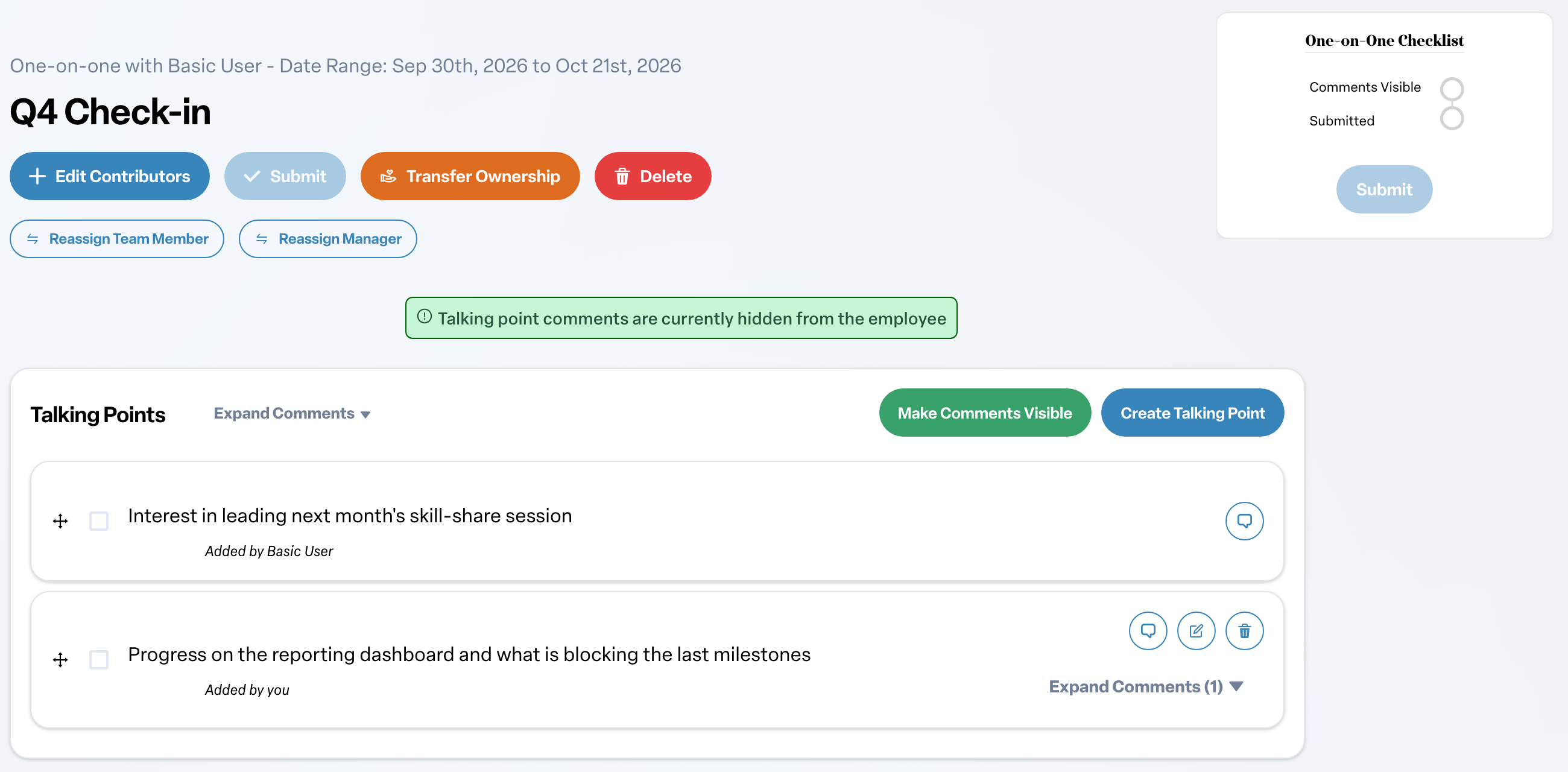
- Press Create Talking Point to add an item. You can also pick a ready-made question from Select to add a Talking Point Template (Optional):.
- Read the talking points your team member added from their side.
- Add your notes with Add comment to talking point.
- Each talking point can be visible to both of you or only to you; press its visibility icon to toggle.
While you prepare, the 1:1 shows Preparing (Only Visible to You). Your comments stay hidden until you press Make Comments Visible. You can hide them again with Make Comments Invisible.
Work the checklist
The One-on-One Checklist tells you what is left. Depending on how the 1:1 was set up it lists Manager Comments, Comments Visible, Manager Questions, Manager Rating, Employee Rating, Acknowledged and Submitted.
- If evaluation is on, rate the period with Add Evaluation. Your team member adds theirs with Add a Self-Evaluation, and acknowledges the 1:1 when your comments and the evaluations are in.
- If the 1:1 is strict, every talking point needs your comment before you can submit.
Submit
Press Submit. Submitting marks the 1:1 complete and cannot be undone. If your comments are still hidden, Engage asks whether to Make visible and submit or Submit without making visible. After submitting, anyone on the 1:1 can press Download PDF for a copy.
Other actions
- Add Contributors or Edit Contributors brings other leaders in. See Adding or removing contributors on a 1:1.
- Transfer Ownership hands the 1:1 to another manager and notifies the old manager, the new manager and the employee.
- Delete is available on 1:1s you created yourself, not on ones generated by a schedule.