This guide walks you through configuring habits for your organization. You will learn how to create habit groups, define behaviors, assign habits to employees, and fine-tune scoring thresholds.
Opening the Admin Habits Panel
The Admin Habits panel is where you manage all habits for your organization. Only admins and users with the configure permission can see this tab.
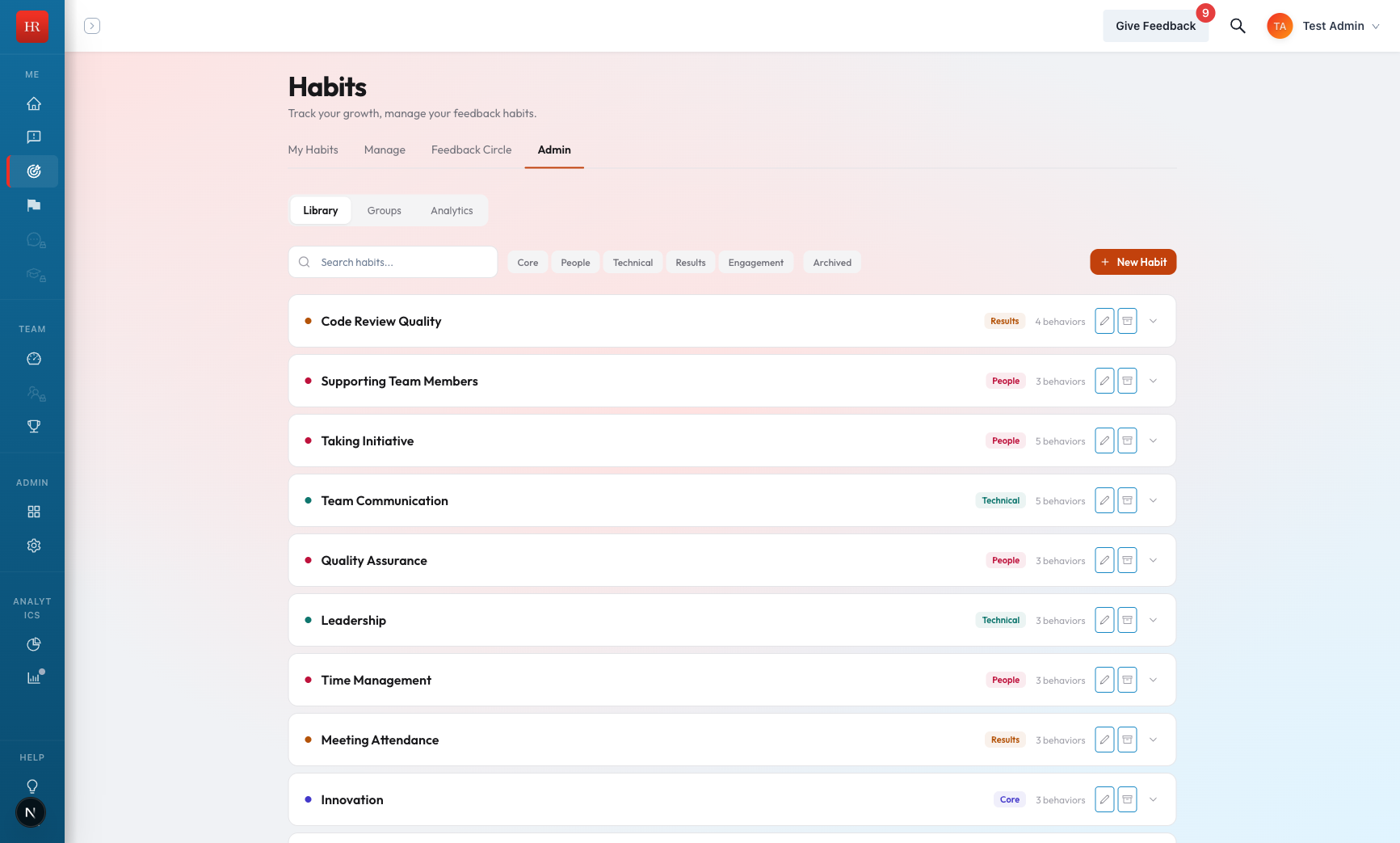
- Click Habits in the main navigation.
- Select the Admin tab at the top of the page.
- You will see all habits organized by category: Core, People, Technical, Results, and Engagement.
Creating and Managing Habit Groups
Habit groups organize your habits into categories. Each habit belongs to exactly one group. Groups help employees and managers find relevant habits quickly.
To create a new group:
- Click Add Group at the top of the Admin Habits panel.
- Enter a Title for the group (for example, "Leadership" or "Communication").
- Add a Description that explains what this group covers.
- Choose a Color and Avatar to visually distinguish the group.
- Click Save.
To reorder groups, drag and drop them into your preferred sequence. To edit a group, click its name and update any field.
Creating a Habit
A habit represents a competency or skill area that employees are evaluated on. Each habit contains one or more behaviors that raters score.
- Click Add Habit within the group where you want the habit to live.
- Enter the Name of the habit (for example, "Ownership").
- Set the Code to a unique identifier using dot notation (for example, "core.ownership"). This cannot be changed later.
- Write a Description that explains what this habit measures.
- Select the Category (Core, People, Technical, Results, or Engagement).
- Choose the Habit Type. Select "User habit" for habits assigned to individual employees, or "Engagement habit" for organization-wide behaviors.
- Optionally set an Employee Type Filter to restrict this habit to a specific employee type.
- Enter a Benchmark Score to set the target score your organization is aiming for on this habit.
- Toggle the Selectable flag on if you want employees to be able to add this habit to their own list.
- Confirm the Habit Group assignment is correct, then click Save.
Defining Behaviors Within a Habit
Each habit contains one or more behaviors. A behavior is a specific, observable action that raters evaluate. The more behaviors a habit has, the more responses are needed before a score unlocks.
- Open the habit you want to add behaviors to.
- Click Add Behavior.
- Enter the Anchor Text. This is the statement raters respond to (for example, "Takes ownership of tasks and follows through").
- Add a Description that provides additional context about what this behavior looks like in practice.
- Set the Code as a unique identifier for this behavior.
- Choose the Time Frame that raters should consider when scoring (for example, "Last 90 days").
- Set the Frequency and Position to control how often this behavior appears and its display order within the habit.
- For engagement habits, use the Active flag to toggle individual behaviors on or off.
- Click Save.
Assigning Habits to Employees
Once you have created habits, you need to assign them to employees so raters can begin providing feedback.
- Navigate to the employee's profile.
- Click the Habits tab.
- Click Add Habit and select the habits you want to assign.
- To remove a habit, click the remove icon next to the habit name.
Who can assign habits:
- Admins can assign habits to any employee in the organization.
- Managers can assign habits to their direct reports.
- Employees can self-select habits that have the selectable flag turned on.
Configuring Scoring Thresholds
Scoring thresholds control when habit scores become visible. These are organization-level settings that apply to all habits.
Unlock threshold. This determines how many responses are needed before a score appears for a habit. It is calculated as: number of behaviors multiplied by the threshold multiplier. For example, if a habit has 4 behaviors and the multiplier is 3, you need 12 total responses before the score unlocks.
Rater count threshold. This sets the minimum number of active raters an employee must have before scores are displayed. The default is 3. This protects anonymity by ensuring scores are never based on feedback from just one or two people.
Archiving Habits
When a habit is no longer needed, you can archive it instead of deleting it. Archiving preserves historical data while removing the habit from active use.
- Open the habit you want to archive.
- Set the status to Archived.
- Click Save.
When you archive a habit, all user assignments for that habit are automatically deactivated across the entire organization. No new feedback can be collected for an archived habit. To restore a habit, open it and change the status back to active.
Engagement Habits
Engagement habits are a special type (type = 1) that apply to all employees across your organization. Unlike user habits, you do not assign engagement habits individually. Instead, they are configured through the Engagement Habits wizard.
- Navigate to Habits > Admin > Engagement.
- Use the wizard to create or edit engagement habits and their behaviors.
- Toggle individual behaviors within an engagement habit on or off using the Active flag. This lets you refine which behaviors are measured without removing the entire habit.
Engagement habits provide organization-wide insight into culture and workplace satisfaction. Every employee receives these habits automatically, so there is no need to manage individual assignments.
Tips
- Start with 3 to 5 behaviors per habit. More behaviors means more responses are needed before scores unlock. Keeping the count low helps employees see meaningful feedback sooner.
- Set benchmarks based on realistic organizational goals. Benchmark scores should reflect what strong performance looks like for your team, not perfection. Unrealistic benchmarks can discourage employees.
- Use the selectable flag strategically. Let employees opt into stretch habits that support their development goals while keeping core habits mandatory for everyone.
- Review archived habits quarterly. Check whether any archived habits should be restored or if any active habits should be retired. Keeping your habit library current ensures employees are evaluated on what matters most.