Creating an Objective in Engage
Open New Objective, name the outcome, add two to four measurable key results, set the dates and the check-in cadence, and choose who owns it.
This guide walks through the New Objective dialog field by field. Before you start, read How to write good objectives so the key results you add are numbers Engage can track.
Open the dialog
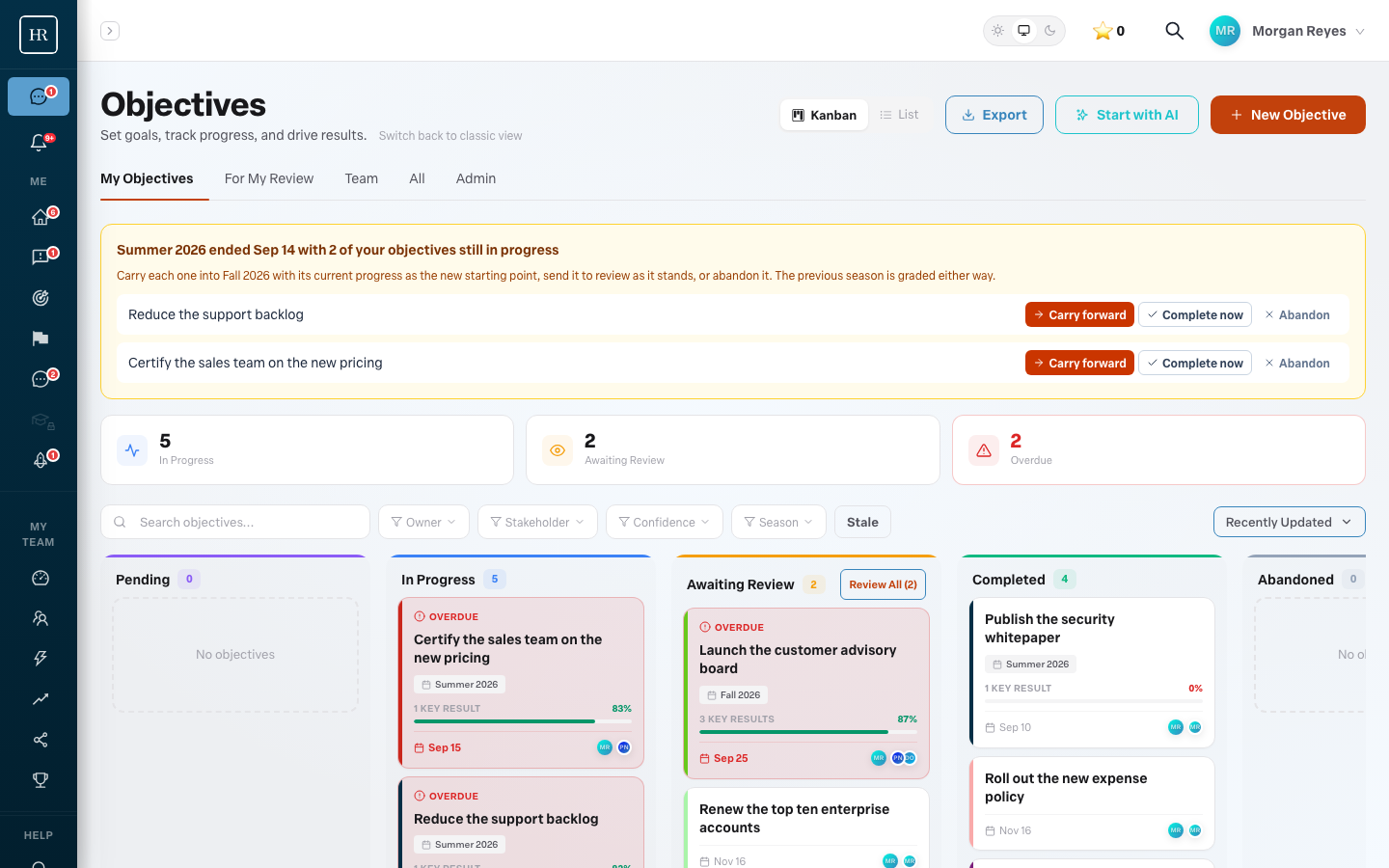
Go to Objectives in the left navigation and press New Objective at the top right. The board behind it shows your objectives by state: Pending, In Progress, Awaiting Review and Completed.
Name and description
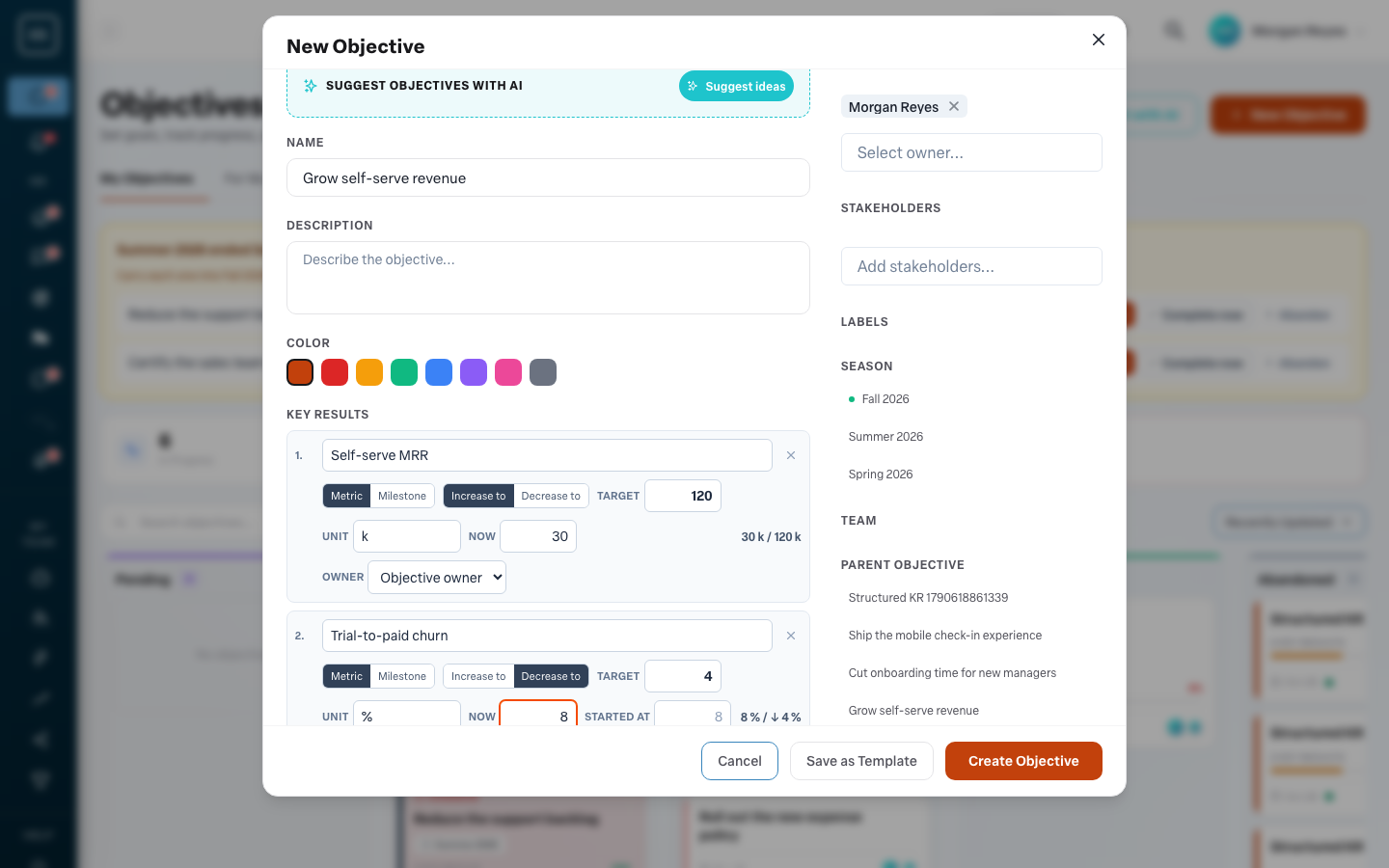
The name is the outcome. The description is one or two sentences on why it matters. Both appear on every check-in card, so write them for the person who will read them in three months.
If you would rather start from a suggestion, press Suggest ideas at the top of the dialog. Engage proposes objectives with key results for your organization, and you can take one as a starting point and edit it.
Key results
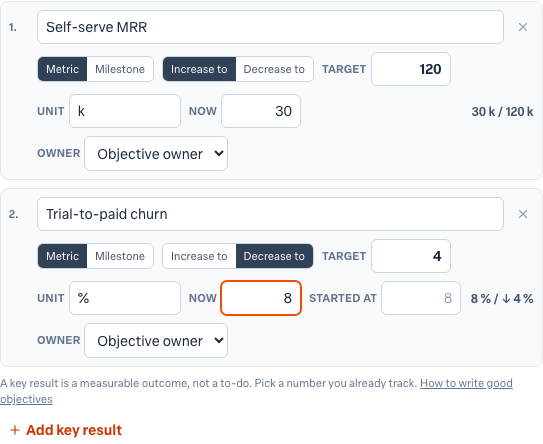
Press Add key result for each measure. For each row choose Metric or Milestone, then for a metric choose Increase to or Decrease to, enter the target, the unit and the current value. A decreasing metric also asks where it started.
Each key result can have its own owner. Leave the owner as Objective owner unless a different person is accountable for that number; a key result owner can update their own row even when they cannot edit the rest of the objective.
Dates and cadence
- Start date and delivery date. The delivery date is what the board calls overdue when it passes.
- Check-in frequency. Weekly, bi-weekly or monthly. Engage sends the owner a check-in card on that cadence, and it uses the cadence to decide when an objective has gone stale.
- Season. Objectives run in seasons. Pick the season the objective belongs to so it appears in that season's summary and rollover.
People and alignment
- Owner. The person accountable. They receive the check-in cards and see the objective under My Objectives.
- Stakeholders. People who follow the objective, can update its key results, and review it at the end.
- Team. The list shows the teams you belong to or manage (administrators see every team). Attach the objective to one so the team tables on the admin view can count it.
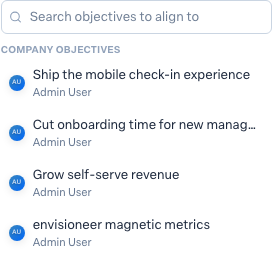
- Parent objective. If the objective supports a bigger one, pick it here so it shows as aligned on the admin health strip. The picker starts with what is worth aligning to: your own objectives, company objectives, your teams', your manager's and your teammates'. Type two or more characters to search everything you may see, with a tag on each row saying where it sits.
- Labels and color. For finding it later on the board.
Save
Press Create Objective. It appears on your board under In Progress, and the first check-in card arrives on the cadence you chose. To change anything later, open the objective and press Edit; key results can be added, renamed and retargeted at any time.
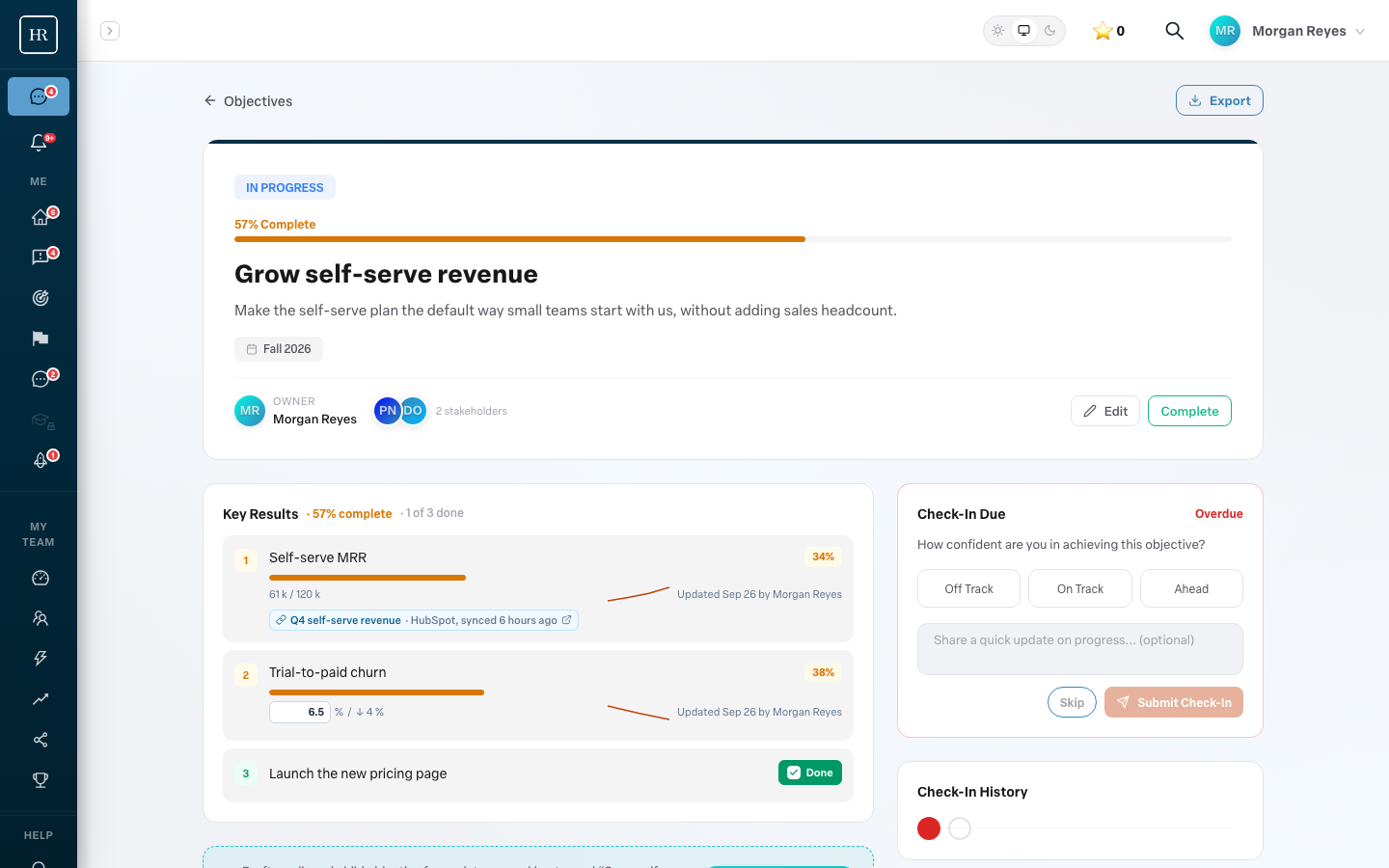
The objective page after saving: the hero with the season, owner and stakeholders, the Key Results panel, and the check-in due on the right.
More in Objectives
- Using AI to draft objectivesBeginner
- Related objectives: parents and sub-objectivesBeginner
- Reading the completed objectives heatmap on your Team DashboardBeginner
- Using your Objectives board day to dayBeginner
- How do I see who changed a key result?Beginner
- Why can't I type a value into a key result?Beginner