As an admin, you can reassign the team member or manager on any existing 1:1 review in your organization — no need to delete and recreate it. This is useful when someone changes teams, a manager transitions out, or a 1:1 was set up with the wrong participant.
Getting to the 1:1
- Navigate to Settings using the admin menu on the left sidebar.
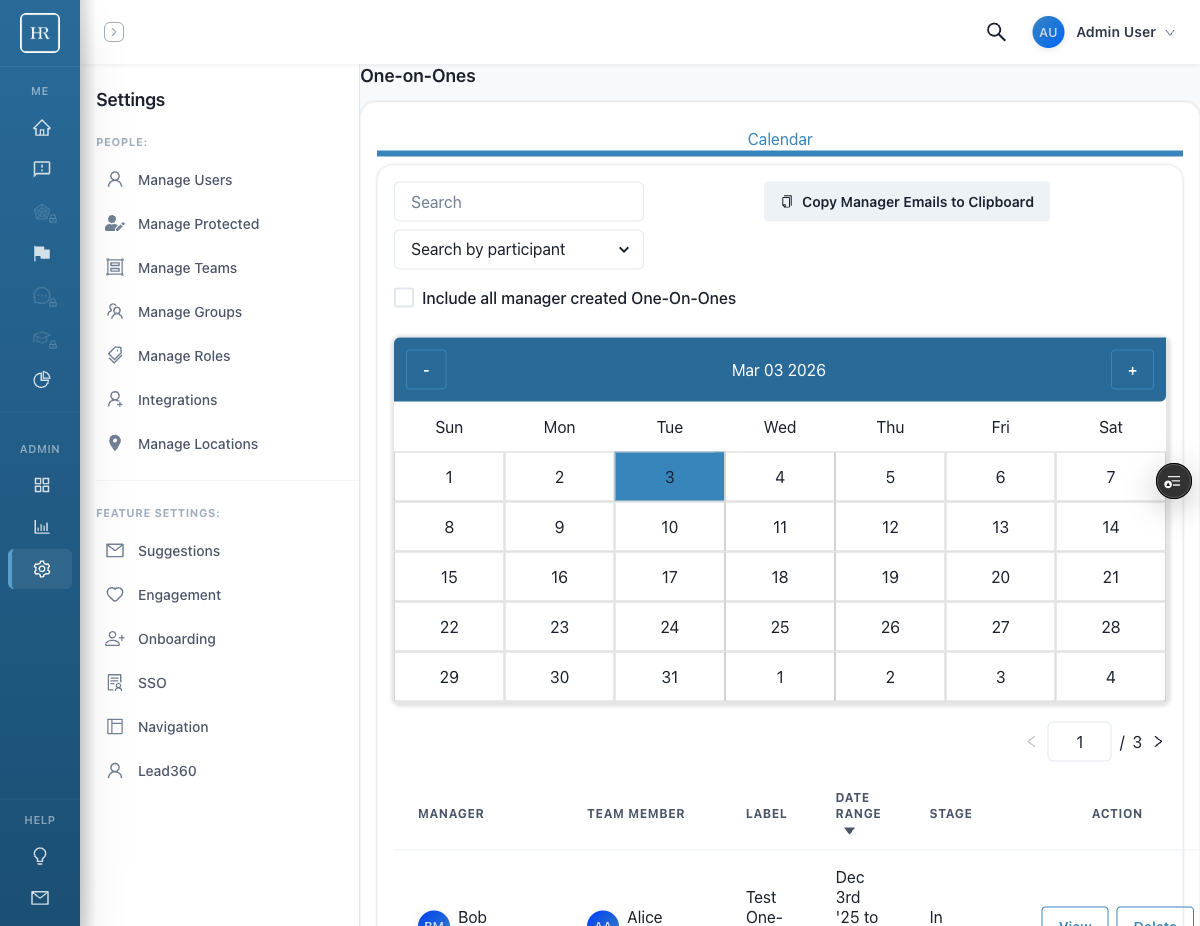
- Scroll down to the One-on-Ones section. You will see a table of all active 1:1s across your organization.
- Find the 1:1 you need to update and click View.
Reassigning the Team Member or Manager
On the 1:1 detail page, you will see two new buttons below the action bar:
- Reassign Team Member — changes which employee is being reviewed
- Reassign Manager — changes which manager is conducting the review
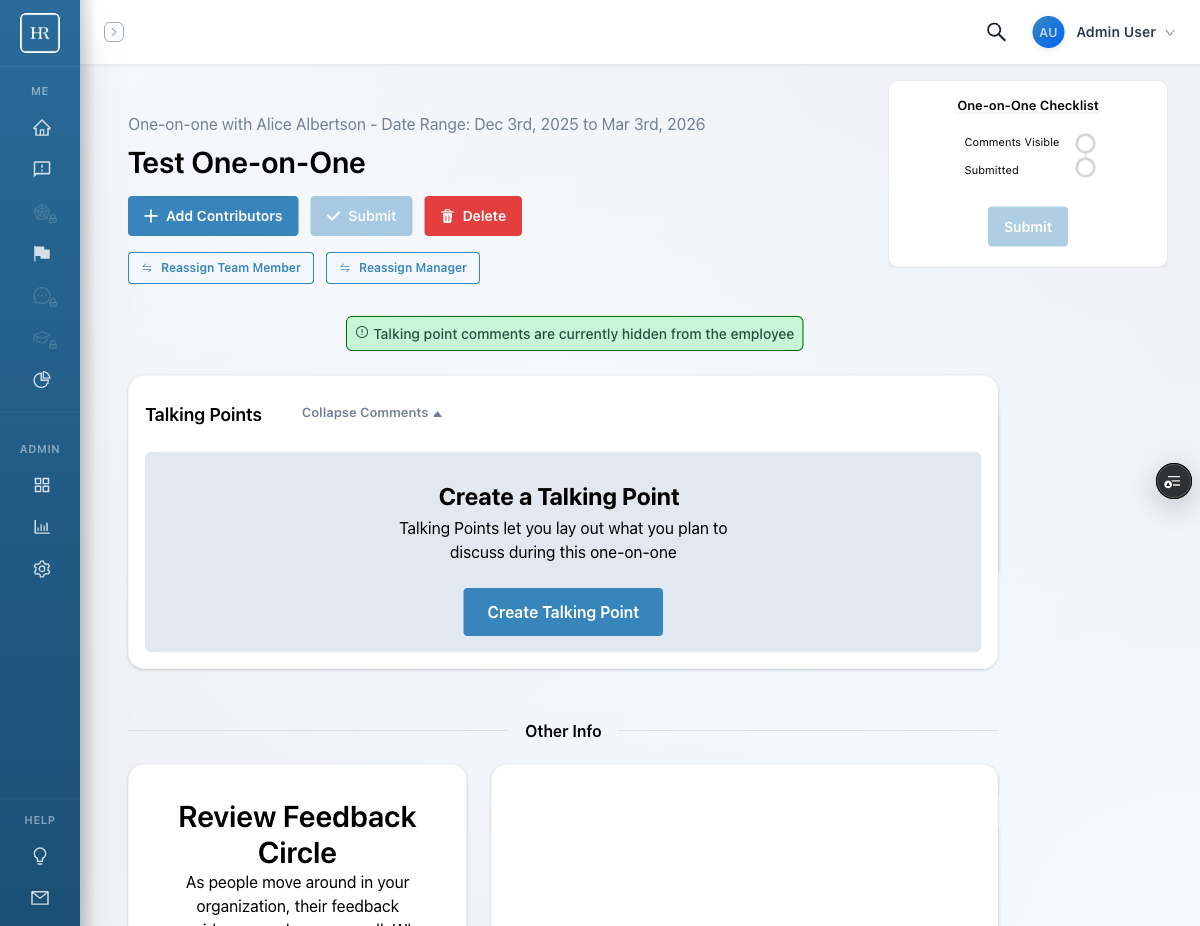
- Click the appropriate Reassign button.
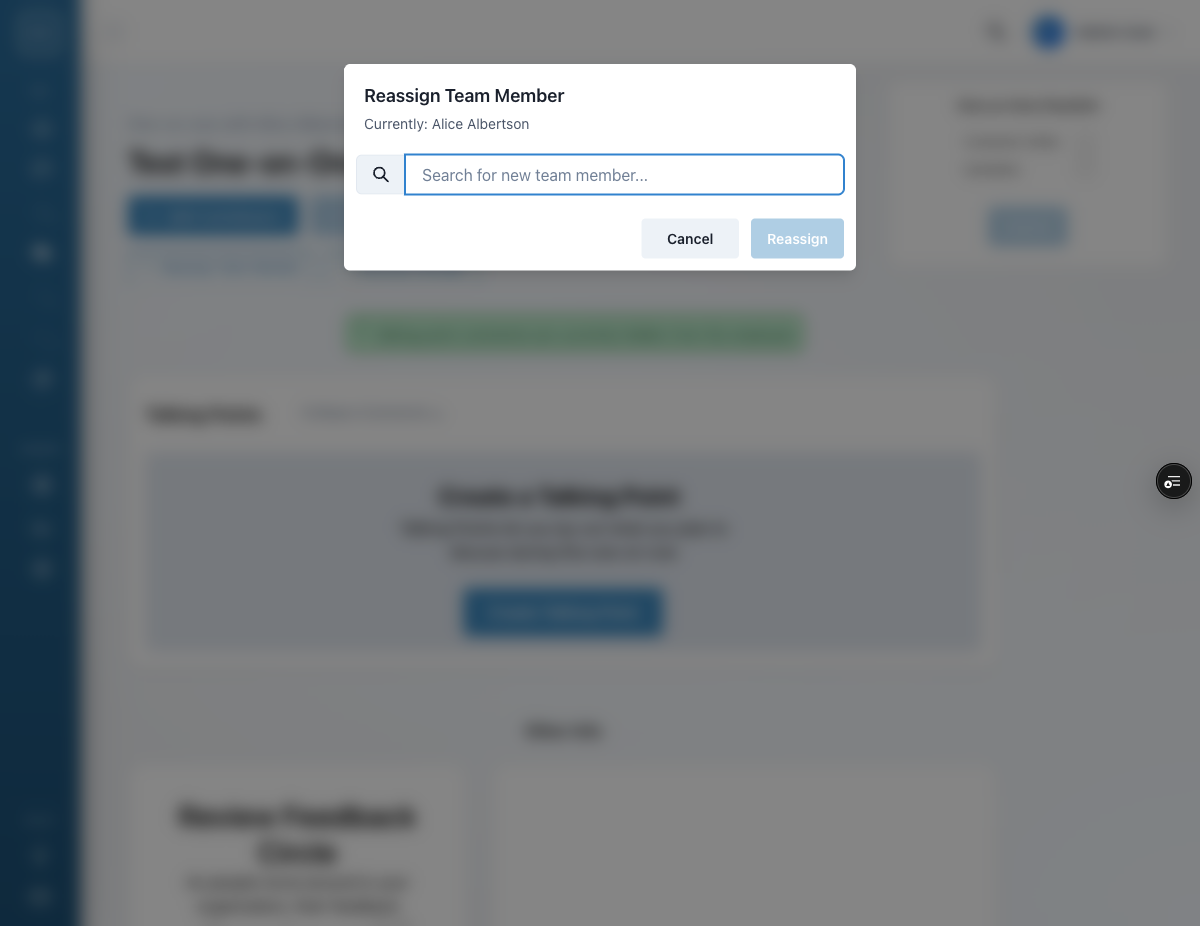
- A modal will appear showing the current assignment. Use the search field to find the new person.
- Select the new team member or manager from the results.
- Click Reassign to confirm.
Important Notes
- Only tenant admins can see and use the reassign buttons. Managers and regular users will not see them.
- All existing talking points, comments, and contributor assignments are preserved when you reassign.
- The 1:1 date range, label, and stage remain unchanged.
- If you need to change both the team member and the manager, you can do them one at a time.
When to Use This
- An employee transferred to a new team and their 1:1 should move with them
- A manager left the company and their 1:1s need to be picked up by a new manager
- A 1:1 was accidentally created with the wrong participant