This guide shows administrators how to extend a Lead360 cohort by moving its end date out. By the end, every participant still working through their 360 will keep collecting feedback through the new date, while anyone who already finished is left untouched.
Before You Begin
You need the right access and a cohort that is already running:
- Role. You must be an Administrator or have the Can Configure permission. Managers and standard users cannot manage cohorts.
- An active cohort. The cohort must already exist with participants. This is for extending a live cohort, not creating one.
Extending a Cohort
This replaces the older Settings then Manage Locations approach. Cohort end dates are now managed from the Lead360 admin area.
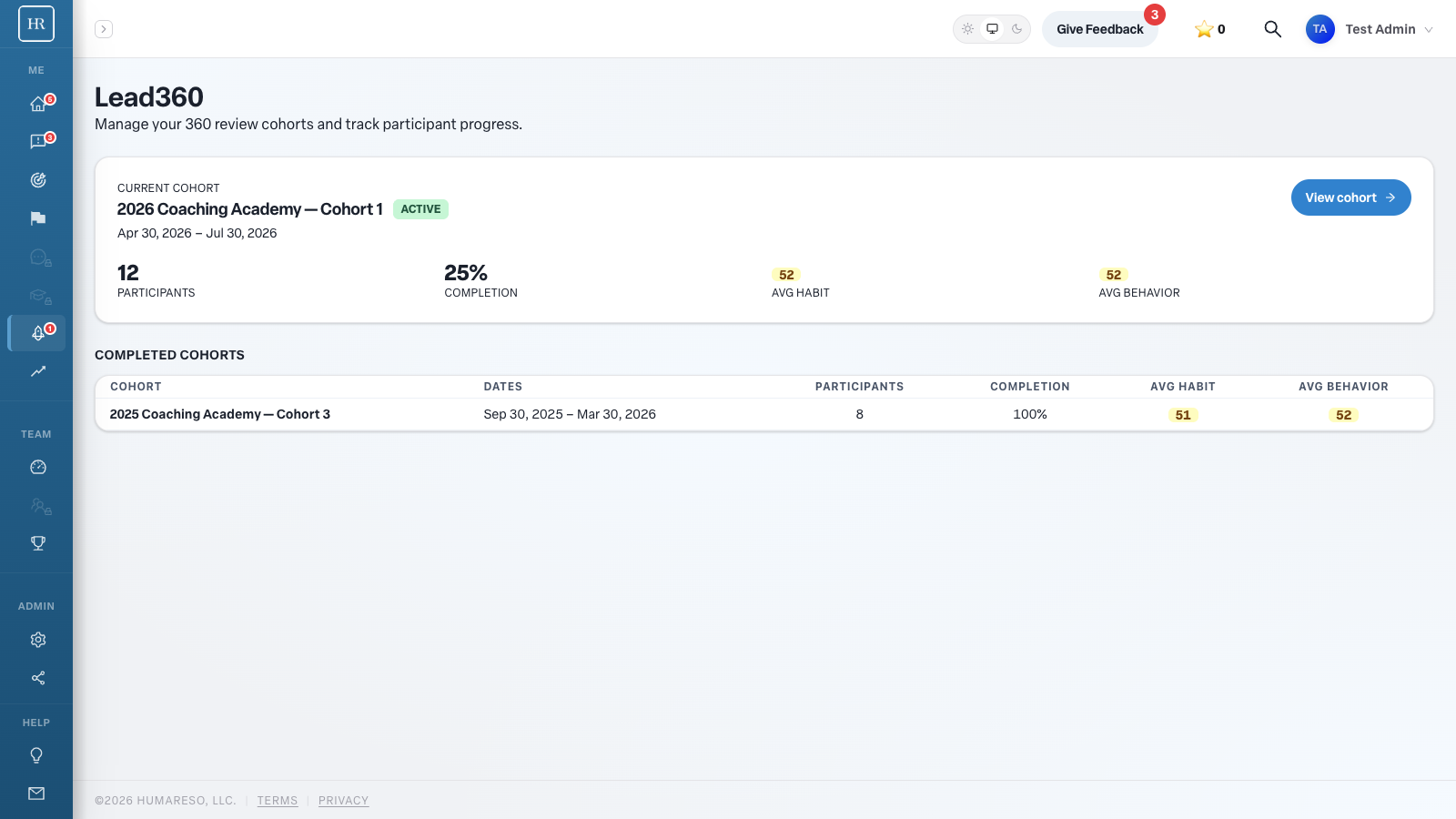
- Go to /lead360/admin in Engage. The all-cohorts overview opens.
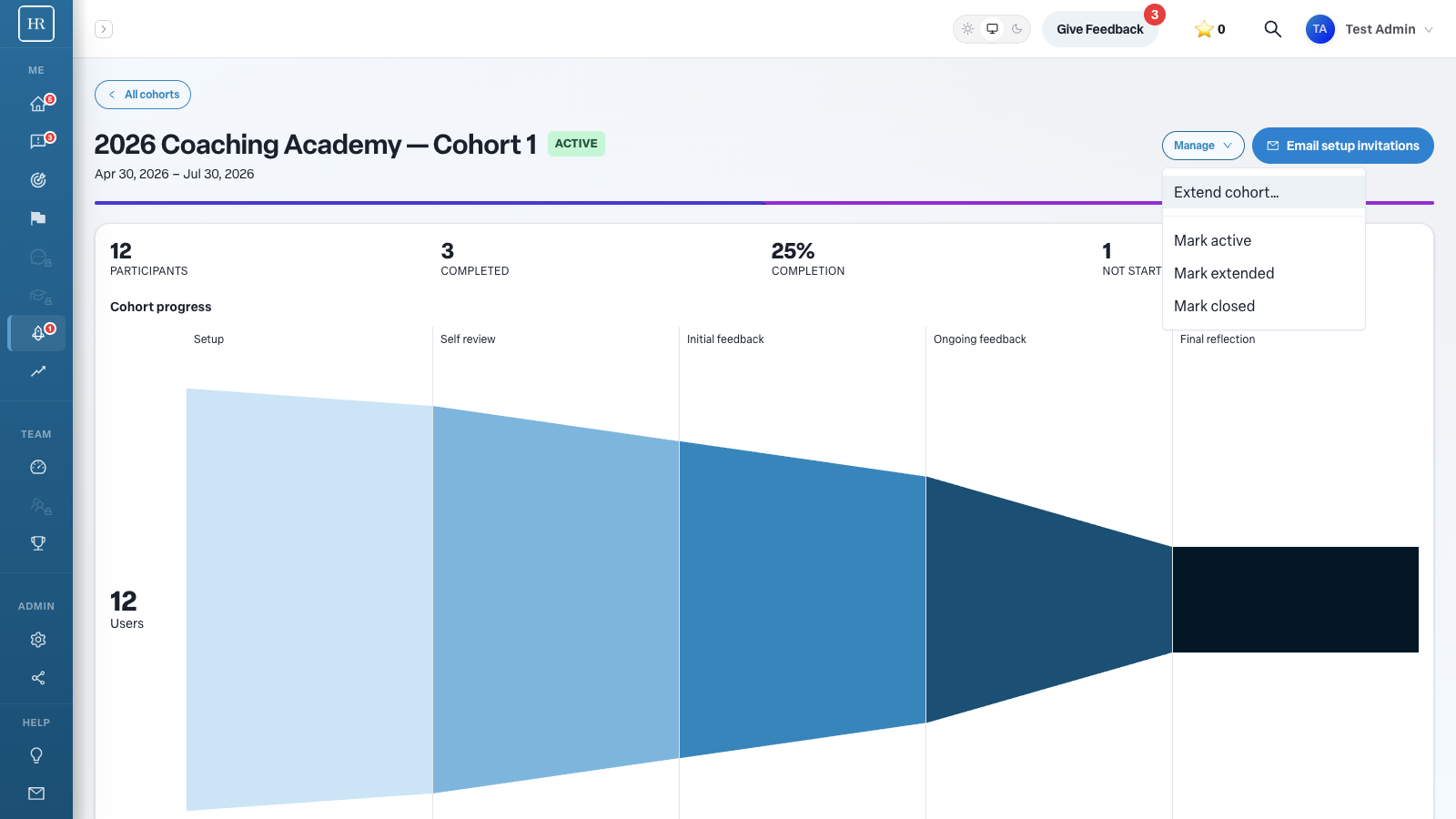
- Select the cohort you want to extend. The cohort detail screen opens with its progress funnel and participant roster.
- Click the Manage menu in the top right of the cohort detail screen.
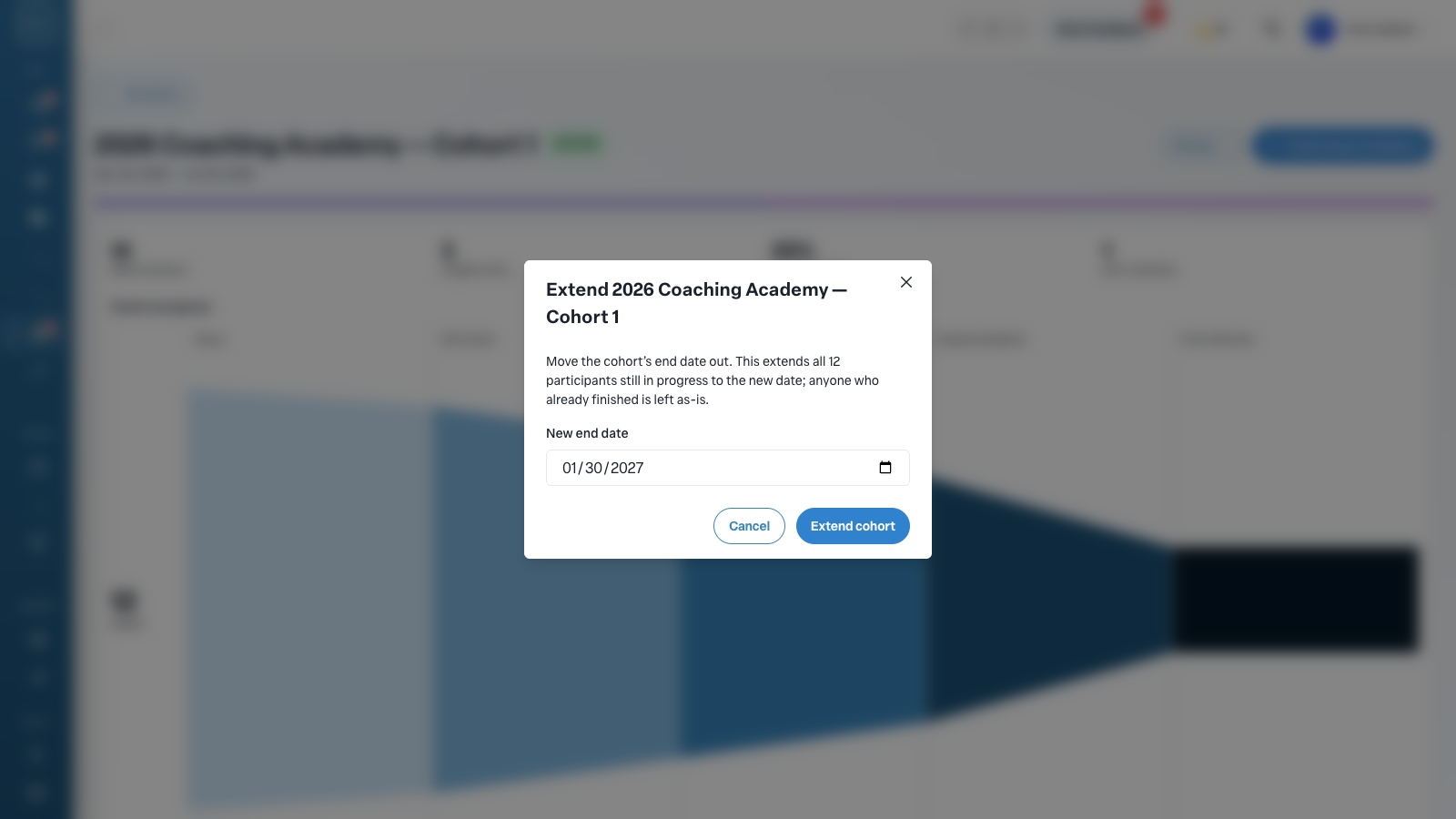
- Click Extend cohort… The extend window opens.
- Choose a New end date. The field suggests six months past the current end date, but you can pick any future date.
- Click Extend cohort to confirm. A confirmation message shows the cohort’s new through date.
What You’ll See
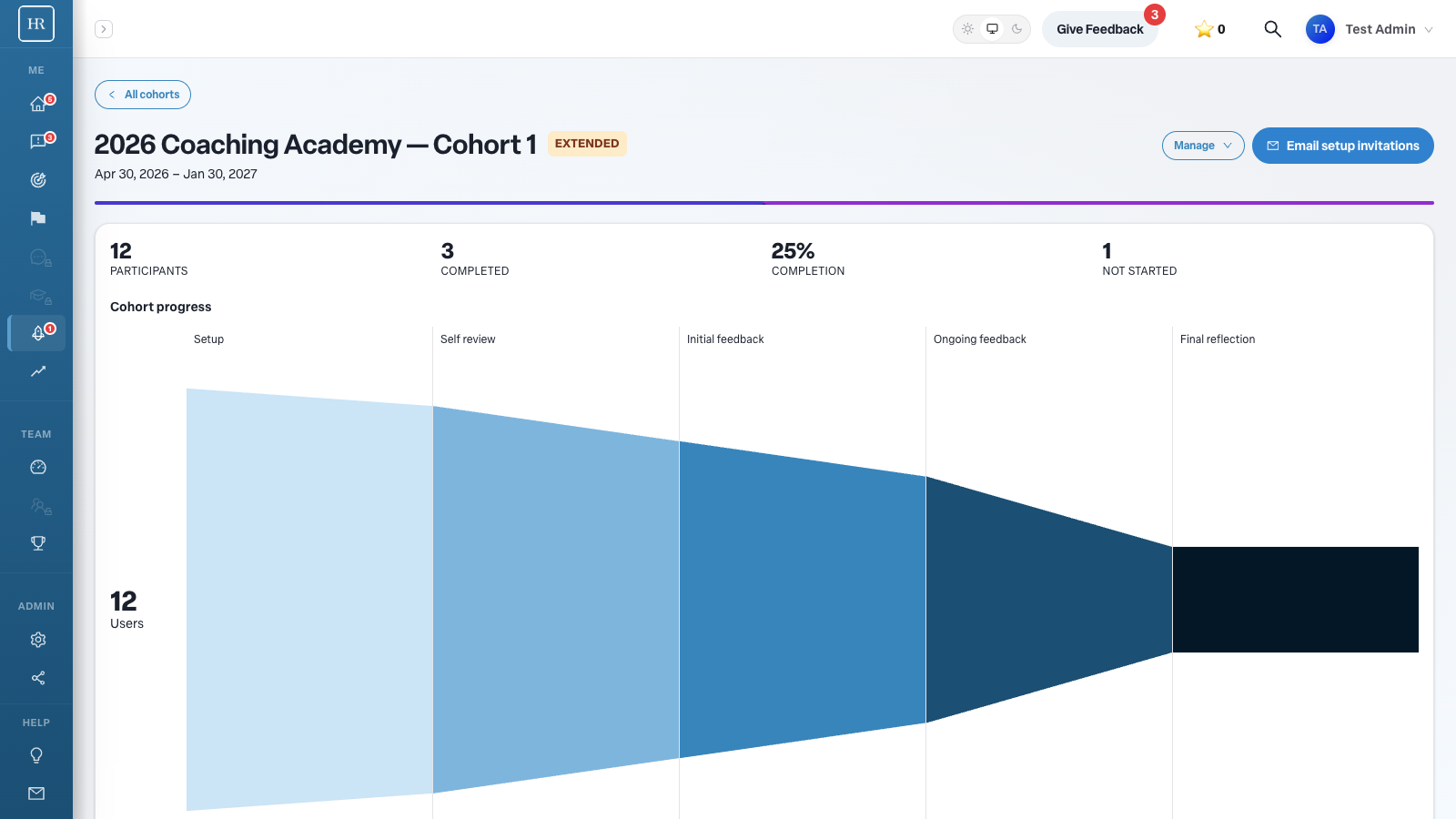
The cohort is marked extended, and its date range updates to the new end date. Every participant who was still in progress is moved to the new date and keeps collecting feedback. Participants who already finished their 360 are not reopened; their results stay as they were.
Common Scenarios
- Year-long coaching cohorts. The default cohort length is six months. If your program runs a full year, extend the cohort to the one-year mark so participants have the whole window to gather feedback.
- Participants need more time. When several leaders have not finished by the original end date, extend the cohort to give the in-progress group more time without affecting anyone who already completed.
- Late additions. If participants joined partway through, extend the end date so the newer members get a fair collection window.
- Closing a cohort. When a cohort is complete, open the Manage menu and choose Mark closed to wrap it up.
Tips
- Extending only moves the date forward. The new date must be in the future; you cannot set an end date in the past.
- Finished participants are protected. Extending never reopens a 360 that already finalized, so it is safe to extend a cohort that is partly complete.
- Set the date before the cycle runs long. Extend as soon as you know the program needs more time, rather than after the original date passes.
Troubleshooting
I don’t see the Manage menu or the Lead360 admin area.
The Lead360 admin area is only available to users with the Administrator role or the Can Configure permission. Ask your Humareso contact to confirm your access.
I extended the cohort but a finished participant did not get more time.
That is expected. Extending applies only to participants still in progress. Reopening a completed 360 is a separate request; contact Humareso support if you need it.